
 Menu
Menu

Exceeds G-SYNC Range
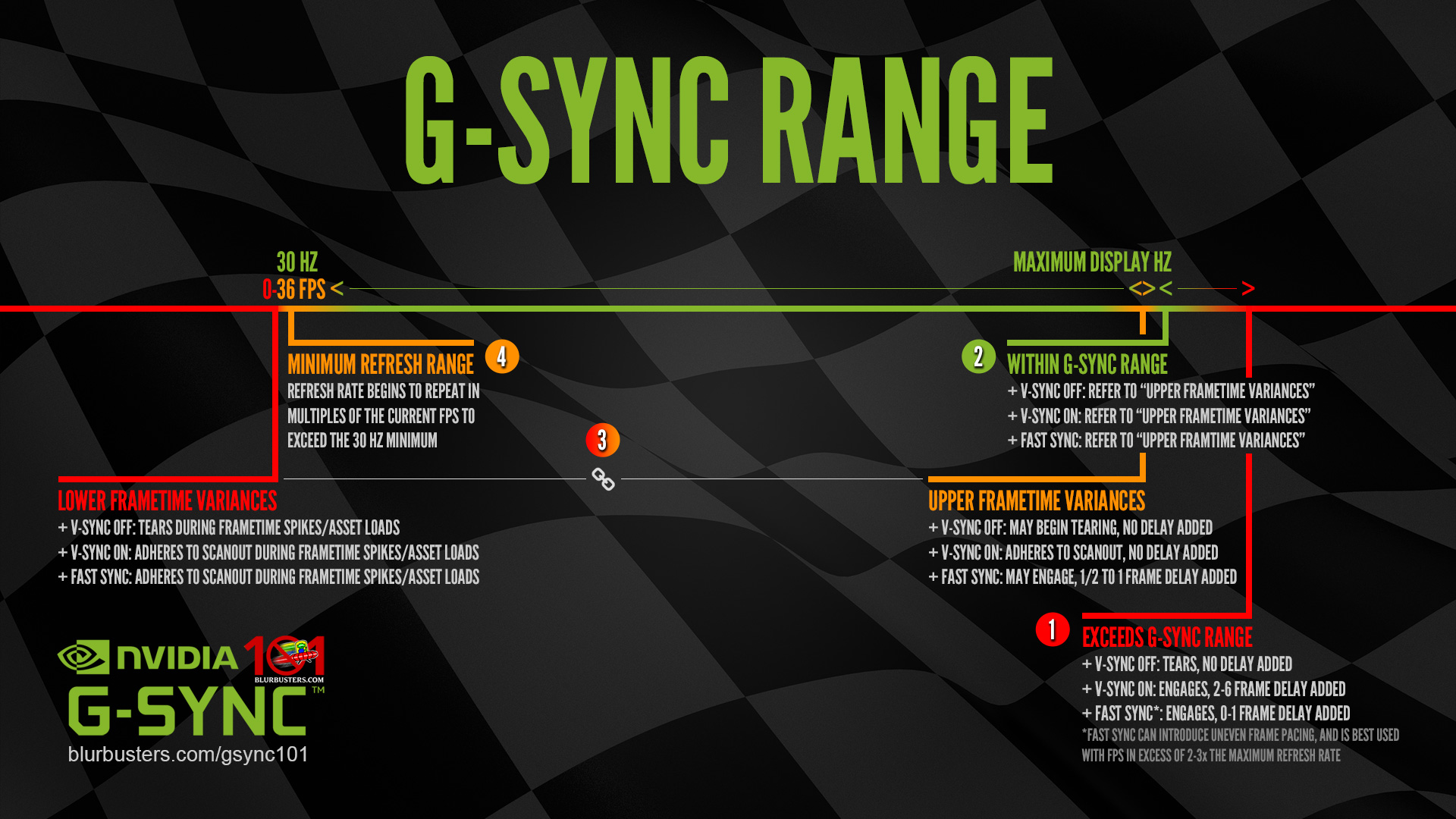
G-SYNC + V-SYNC “Off”:
G-SYNC disengages, tearing begins display wide, no frame delay is added.
G-SYNC + V-SYNC “On”:
G-SYNC reverts to V-SYNC behavior when it can no longer adjust the refresh rate to the framerate, 2-6 frames (typically 2 frames; approximately an additional 33.2ms @60 Hz, 20ms @100 Hz, 13.8ms @144 Hz, etc) of delay is added as rendered frames begin to over-queue in both buffers, ultimately delaying their appearance on-screen.
G-SYNC + Fast Sync*:
G-SYNC disengages, Fast Sync engages, 0-1 frame of delay is added**.
*Fast Sync is best used with framerates in excess of 2x to 3x that of the display’s maximum refresh rate, as its third buffer selects from the “best” frame to display as the final render; the higher the sample rate, the better it functions. Do note, even at its most optimal, Fast Sync introduces uneven frame pacing, which can manifest as recurring microstutter.
**Refresh rate/framerate ratio dependent (see G-SYNC 101: G-SYNC vs. Fast Sync).

Within G-SYNC Range
Refer to “Upper & Lower Frametime Variances” section below…

Upper & Lower Frametime Variances
G-SYNC + V-SYNC “Off”:
The tearing inside the G-SYNC range with V-SYNC “Off” is caused by sudden frametime variances output by the system, which will vary in severity and frequency depending on both the efficiency of the given game engine, and the system’s ability (or inability) to deliver consistent frametimes.
G-SYNC + V-SYNC “Off” disables the G-SYNC module’s ability to compensate for sudden frametime variances, meaning, instead of aligning the next frame scan to the next scanout (the process that physically draws each frame, pixel by pixel, left to right, top to bottom on-screen), G-SYNC + V-SYNC “Off” will opt to start the next frame scan in the current scanout instead. This results in simultaneous delivery of more than one frame in a single scanout (tearing).
In the Upper FPS range, tearing will be limited to the bottom of the display. In the Lower FPS range (<36) where frametime spikes can occur (see What are Frametime Spikes?), full tearing will begin.
Without frametime compensation, G-SYNC functionality with V-SYNC “Off” is effectively “Adaptive G-SYNC,” and should be avoided for a tear-free experience (see G-SYNC 101: Optimal Settings & Conclusion).
G-SYNC + V-SYNC “On”:
This is how G-SYNC was originally intended to function. Unlike G-SYNC + V-SYNC “Off,” G-SYNC + V-SYNC “On” allows the G-SYNC module to compensate for sudden frametime variances by adhering to the scanout, which ensures the affected frame scan will complete in the current scanout before the next frame scan and scanout begin. This eliminates tearing within the G-SYNC range, in spite of the frametime variances encountered.
Frametime compensation with V-SYNC “On” is performed during the vertical blanking interval (the span between the previous and next frame scan), and, as such, does not delay single frame delivery within the G-SYNC range and is recommended for a tear-free experience (see G-SYNC 101: Optimal Settings & Conclusion).
G-SYNC + Fast Sync:
Upper FPS range: Fast Sync may engage, 1/2 to 1 frame of delay is added.
Lower FPS range: see “V-SYNC ‘On'” above.
What are Frametime Spikes?
Frametime spikes are an abrupt interruption of frames output by the system, and on a capable setup running an efficient game engine, typically occur due to loading screens, shader compilation, background asset streaming, auto saves, network activity, and/or the triggering of a script or physics system, but can also be exacerbated by an incapable setup, inefficient game engine, poor netcode, low RAM/VRAM and page file over usage, misconfigured (or limited game support for) SLI setups, faulty drivers, specific or excess background processes, in-game overlay or input device conflicts, or a combination of them all.
Not to be confused with other performance issues, like framerate slowdown or V-SYNC-induced stutter, frametime spikes manifest as the occasional hitch or pause, and usually last for mere micro to milliseconds at a time (seconds, in the worst of cases), plummeting the framerate to as low as the single digits, and concurrently raising the frametime to upwards of 1000ms before re-normalizing.
G-SYNC eliminates traditional V-SYNC stutter caused below the maximum refresh rate by repeated frames from delayed frame delivery, but frametime spikes still affect G-SYNC, since it can only mirror what the system is outputting. As such, when G-SYNC has nothing new to sync to for a frame or frames at a time, it must repeat the previous frame(s) until the system resumes new frame(s) output, which results in the visible interruption observed as stutter.
The more efficient the game engine, and the more capable the system running it, the less frametime spikes there are (and the shorter they last), but no setup can fully avoid their occurrence.

Minimum Refresh Range
Once the framerate reaches the approximate 36 and below mark, the G-SYNC module begins inserting duplicate refreshes per frame to maintain the panel’s minimum physical refresh rate, keep the display active, and smooth motion perception. If the framerate is at 36, the refresh rate will double to 72 Hz, at 18 frames, it will triple to 54 Hz, and so on. This behavior will continue down to 1 frame per second.
Regardless of the reported framerate and variable refresh rate of the display, the scanout speed will always be a match to the display’s current maximum refresh rate; 16.6ms @60Hz, 10ms @100 Hz, 6.9ms @144 Hz, and so on. G-SYNC’s ability to detach framerate and refresh rate from the scanout speed can have benefits such as faster frame delivery and reduced input lag on high refresh rate displays at lower fixed framerates (see G-SYNC 101: Hidden Benefits of High Refresh Rate G-SYNC).
