G-SYNC 101: G-SYNC vs. V-SYNC OFF


Beyond the Limits of the Scanout

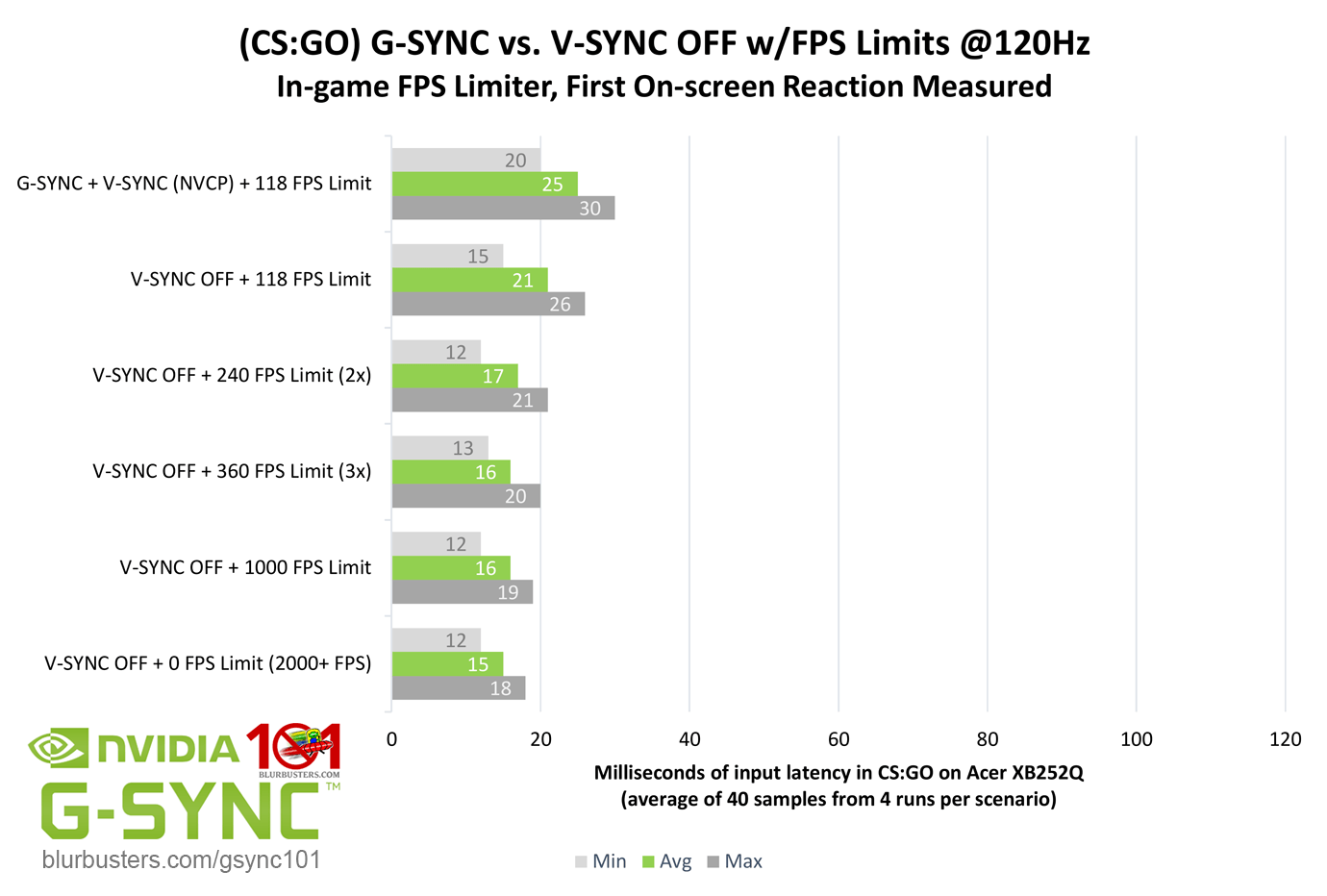
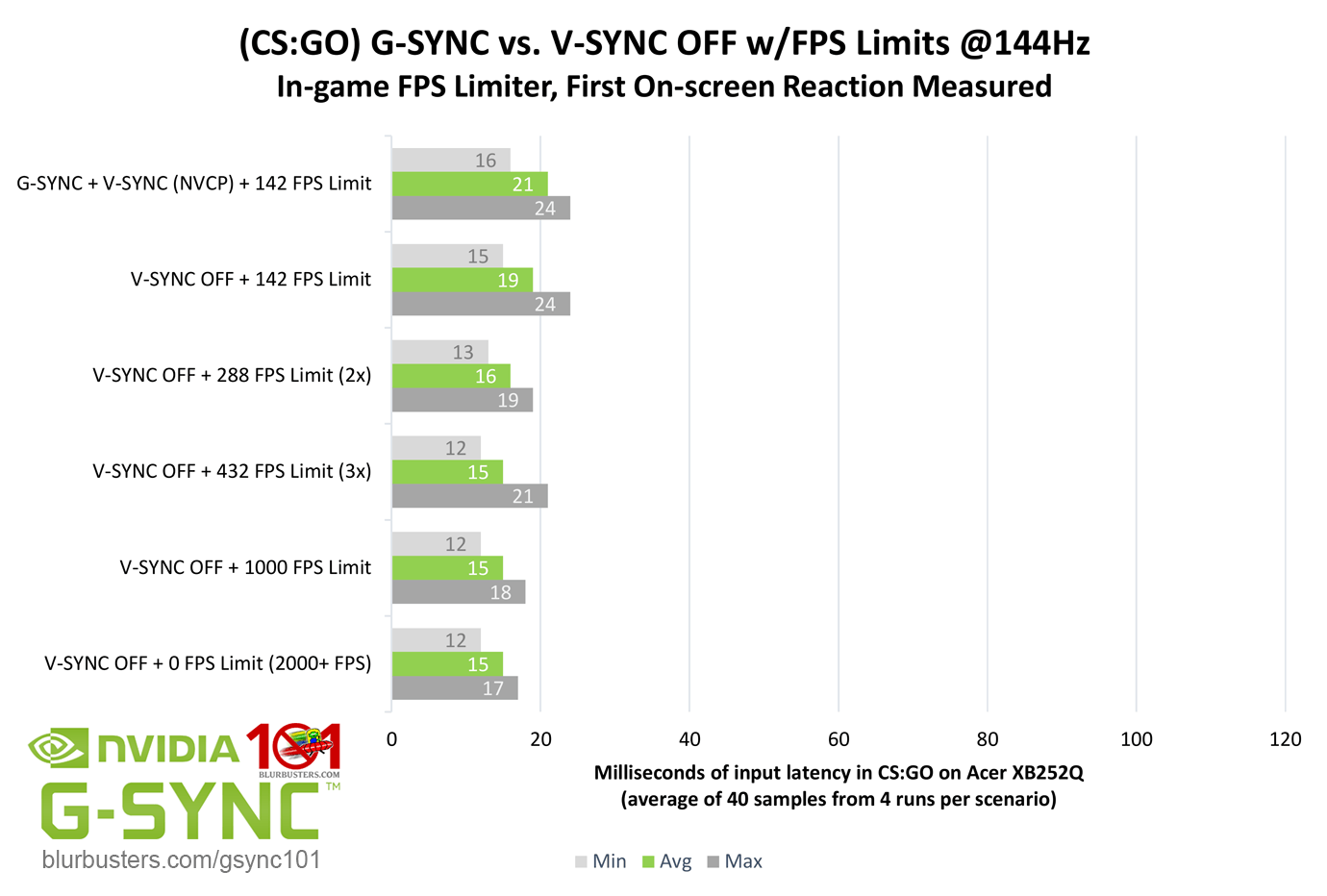
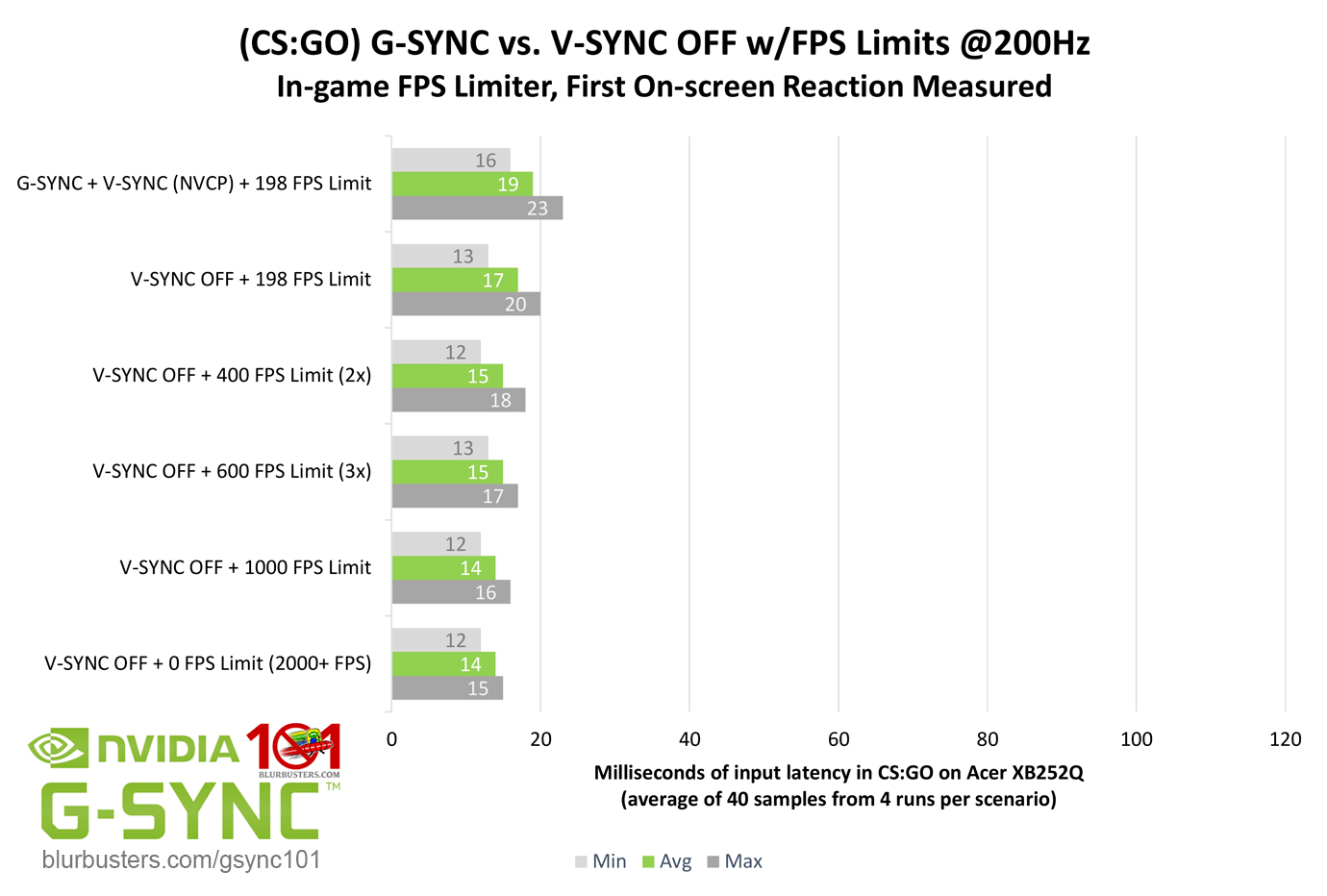
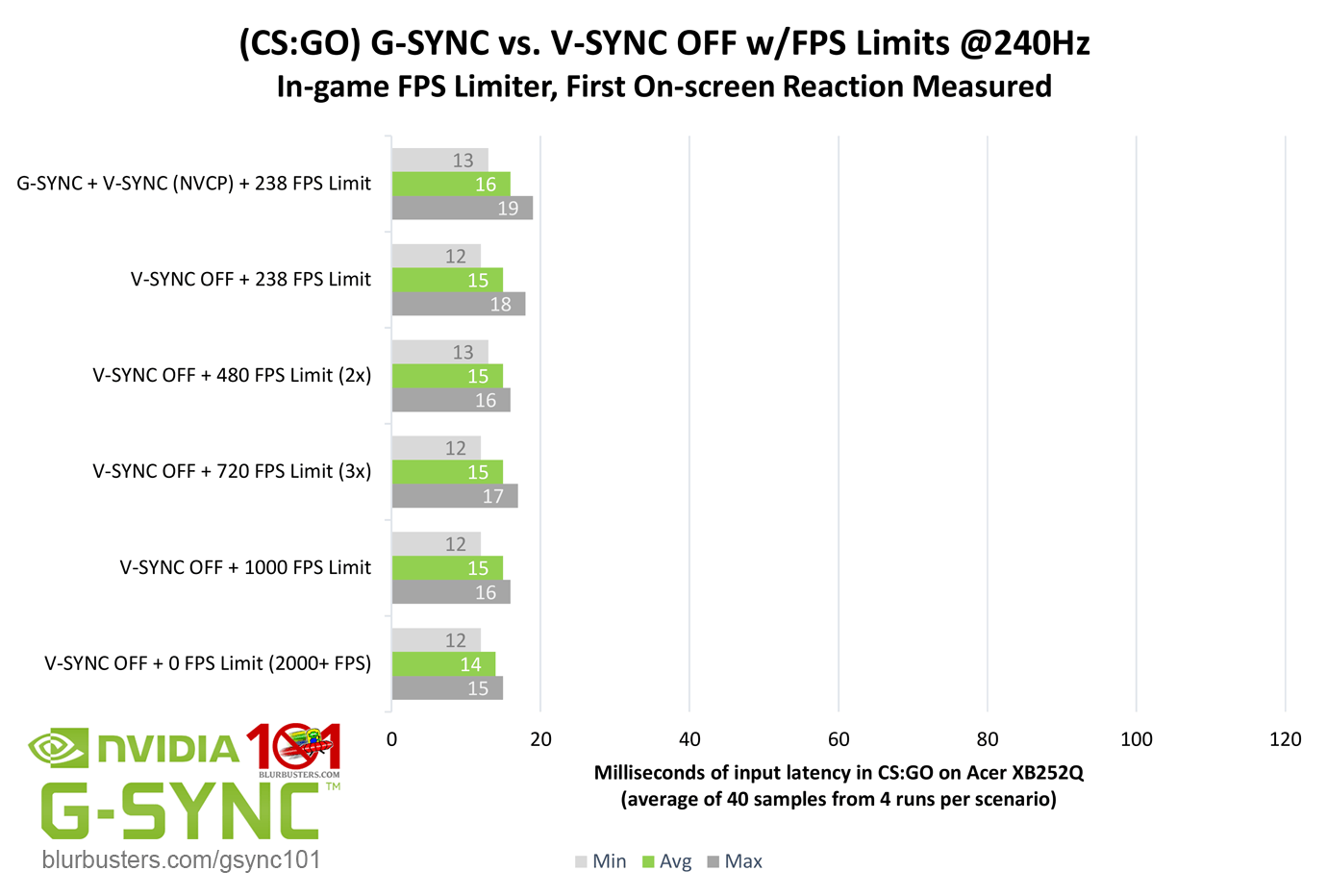
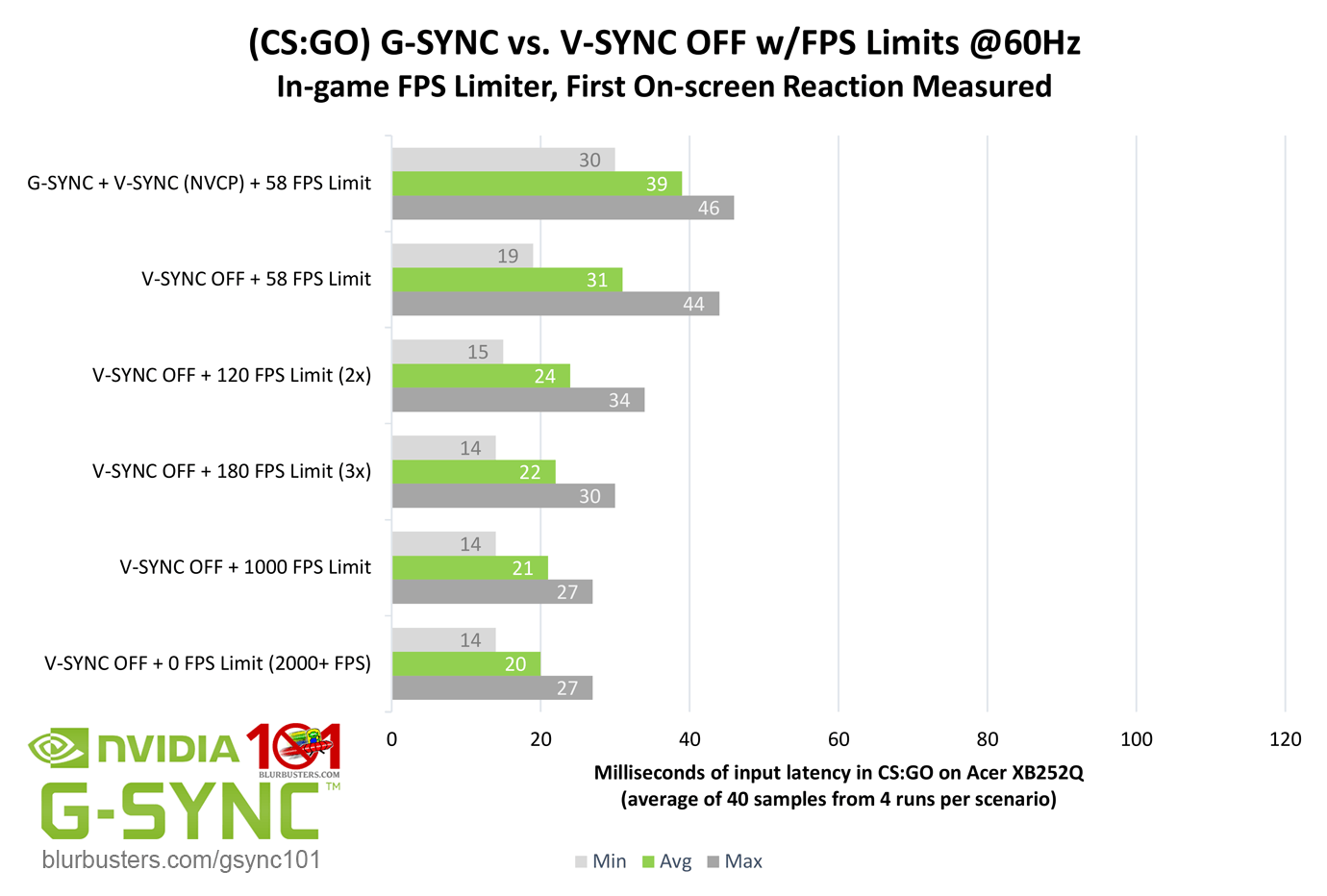
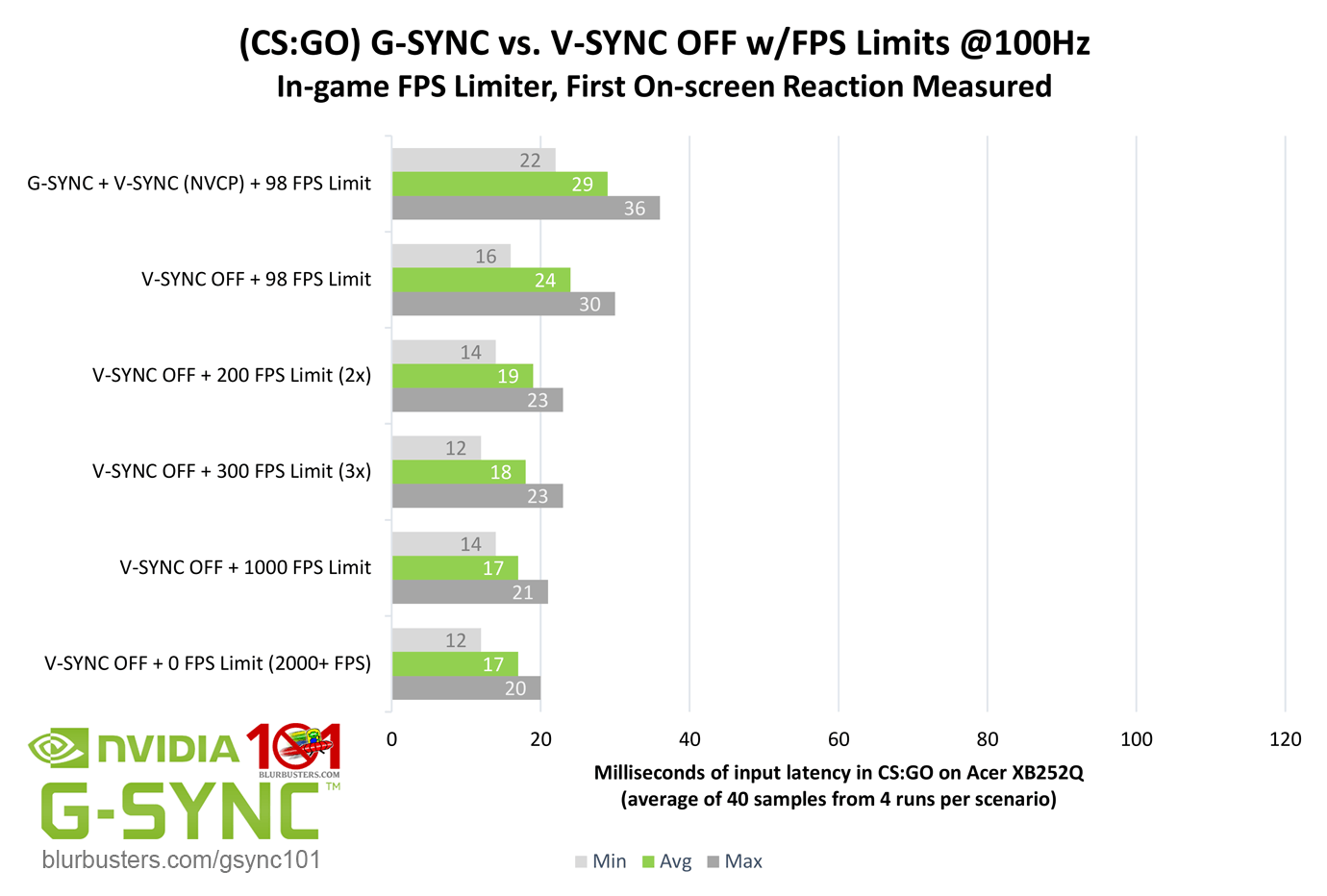
It’s already been established that single, tear-free frame delivery is limited by the scanout, and V-SYNC OFF can defeat it by allowing more than one frame scan per scanout. That said, how much of an input lag advantage can be had over G-SYNC, and how high must the framerate be sustained above the refresh rate to diminish tearing artifacts and justify the difference?
Blur Buster's G-SYNC 101: Input Latency & Optimal Settings

Quite high. Counting first on-screen reactions, V-SYNC OFF already has a slight input lag advantage (up to a 1/2 frame) over G-SYNC at the same framerate, especially the lower the refresh rate, but it actually takes a considerable increase in framerate above the given refresh rate to widen the gap to significant levels. And while the reductions may look significant in bar chart form, even with framerates in excess of 3x the refresh rate, and when measured at middle screen (crosshair-level) only, V-SYNC OFF actually has a limited advantage over G-SYNC in practice, and most of it is in areas that one could argue, for the average player, are comparatively useless when something such as a viewmodel’s wrist is updated 1-3ms faster with V-SYNC OFF.

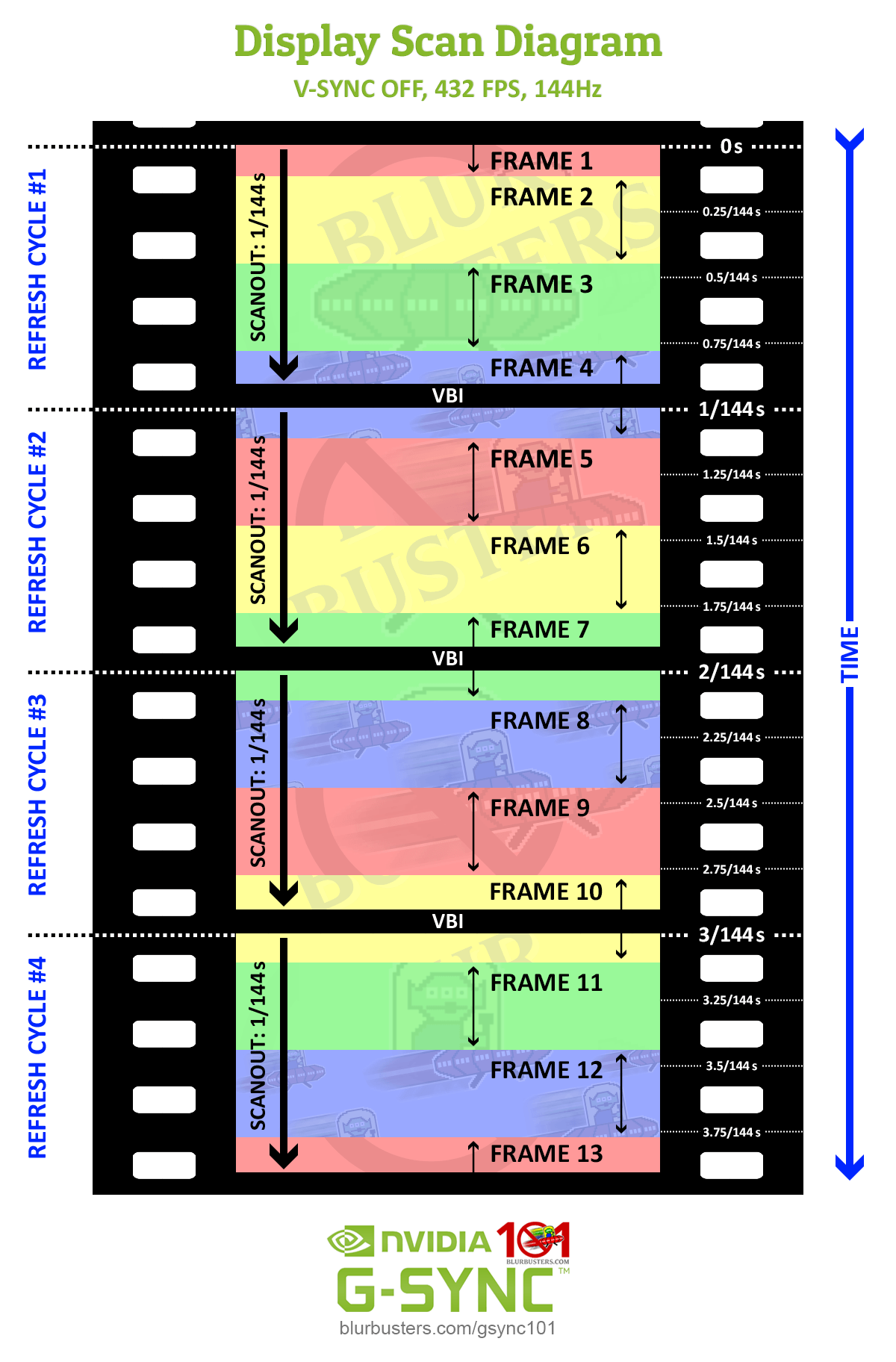
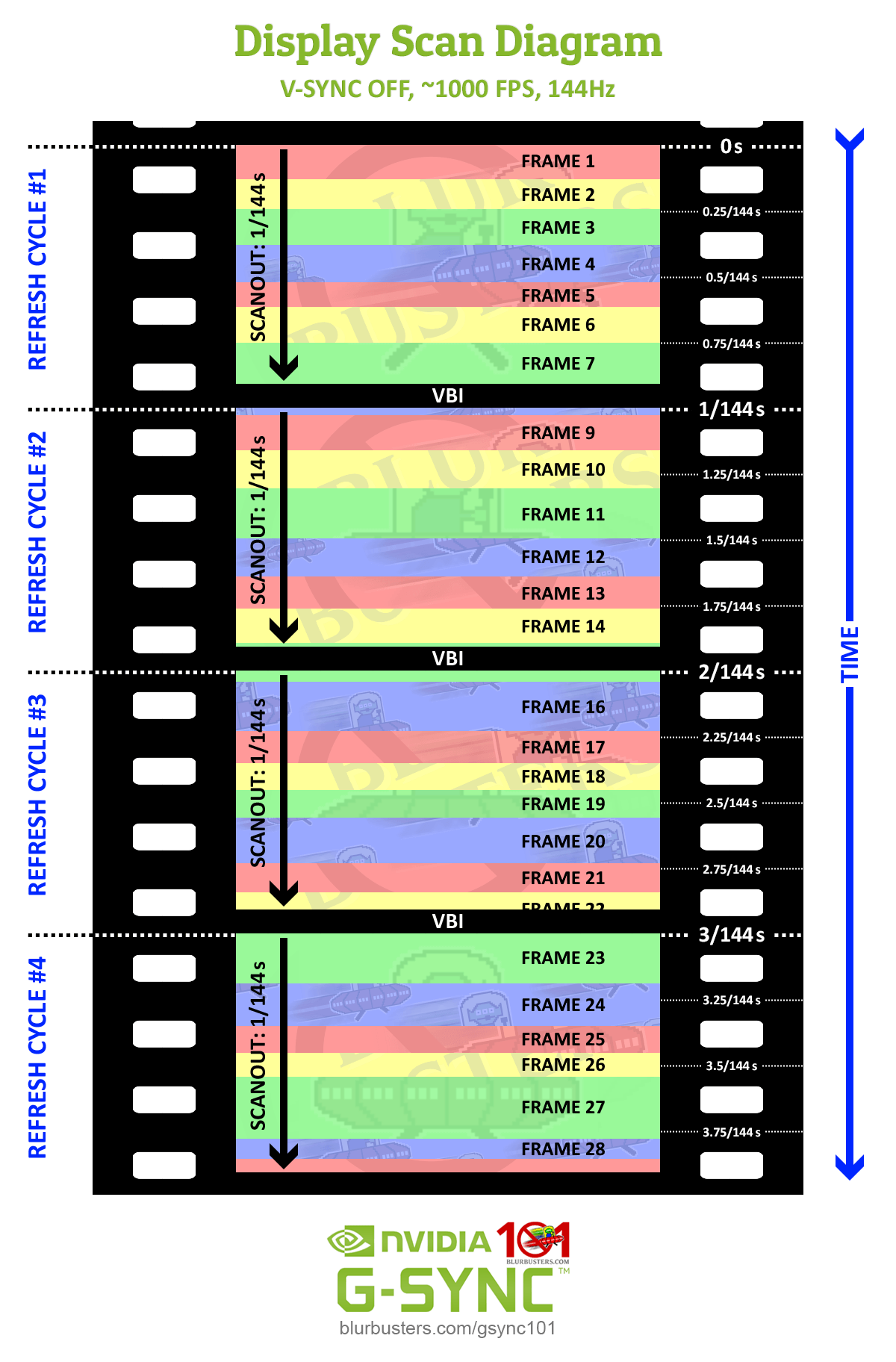
This is where the refresh rate/sustained framerate ratio factors in:
Blur Buster's G-SYNC 101: Input Latency & Optimal Settings

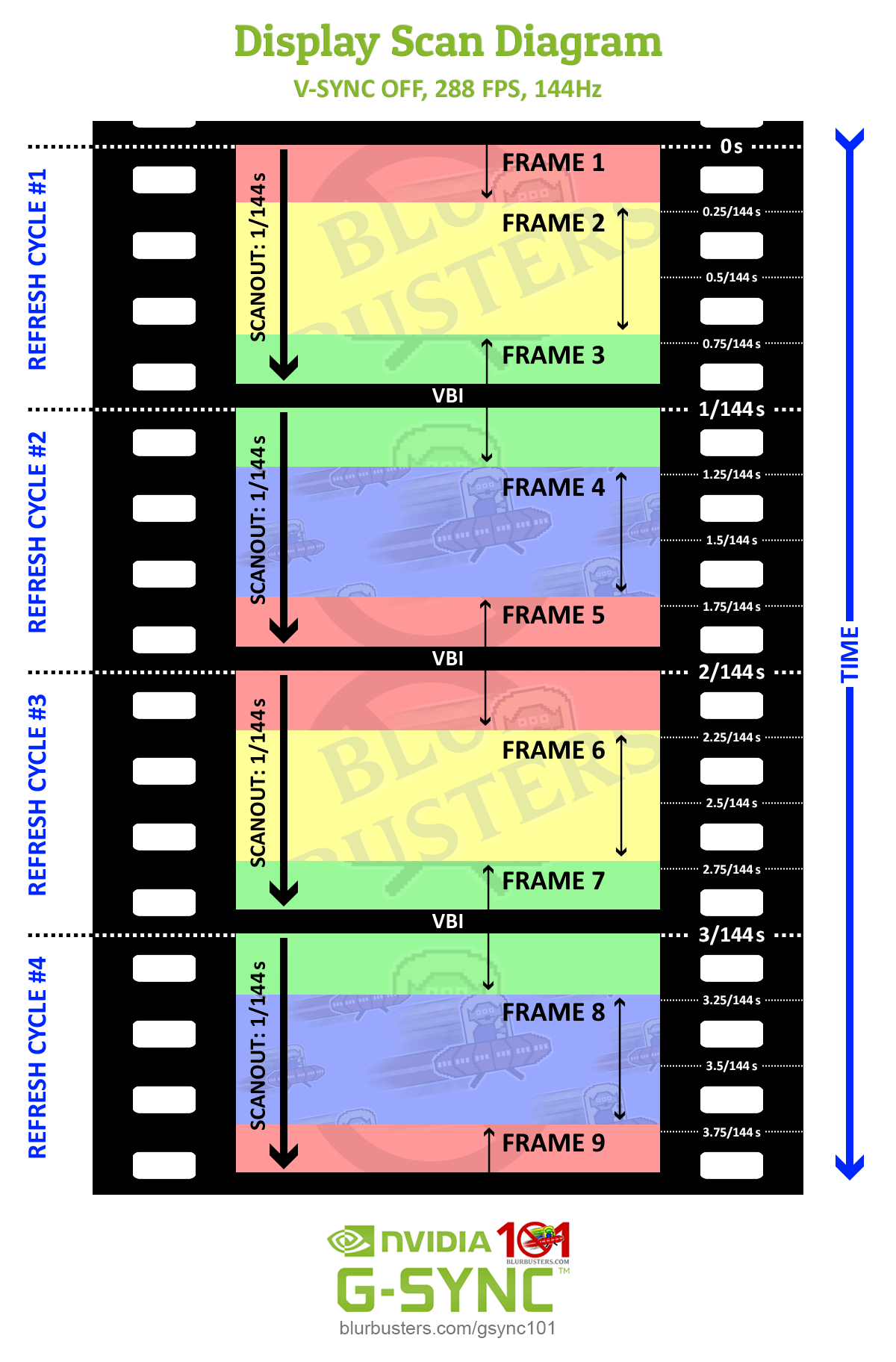
As shown in the above diagrams, the true advantage comes when V-SYNC OFF can allow not just two, but multiple frame scans in a single scanout. Unlike syncing solutions, with V-SYNC OFF, the frametime is not paced to the scanout, and a frame will begin scanning in as soon as it’s rendered, regardless whether the previous frame scan is still in progress. At 144Hz with 1000 FPS, for instance, this means with a sustained frametime of 1ms, the display updates nearly 7 times in a single scanout.

In fact, at 240Hz, first on-screen reactions became so fast at 1000 FPS and 0 FPS, that the inherit delay in my mouse and display became the bottleneck for minimum measurements.

So, for competitive players, V-SYNC OFF still reigns supreme in the input lag realm, especially if sustained framerates can exceed the refresh rate by 5x or more. However, while at higher refresh rates, visible tearing artifacts are all but eliminated at these ratios, it can instead manifest as microstutter, and thus, even at its best, V-SYNC OFF still can’t match the consistency of G-SYNC frame delivery.



3852 Comments For “G-SYNC 101”

This site uses Akismet to reduce spam. Learn how your comment data is processed.

Sort by:   newest | oldest | most liked
Iriodus
Member
Iriodus

So, 2 separate but related questions:

1) For games that use the Vulkan renderer, like Doom Eternal, should we be using borderless fullscreen or exclusive fullscreen?

2) Not sure if you’d know the answer to this one, but since Proton on Linux uses a DirectX-to-Vulkan translation layer, should people use the recommendation for question 1 above, or say if a game is DirectX11 before taking into account the DX-to-Vulkan translation do use Fullscreen/Exclusive Fullscreen as if we were on Windows.

For reference, I’ve replicated the optimal G-Sync setup on my Linux machine, and since switching I’ve just been doing “If it’s originally DX11 or lower? Fullscreen/Exclusive Fullscreen. If it’s originally DX12? I use borderless fullscreen”

ksydew
Member
ksydew

Sorry for posting so much but I have one last question, I just bought the acer Nitro XV275U F5BIIPPRX, it’s a free sync premium Pro monitor but isn’t g sync certified. It should still work with g sync no problem right? I have it turned on same usual settings, g sync indicator is working and on in the top right corner, but just want to make sure it’s fine? It seems like it is but I’m not the expert

ksydew
Member
ksydew

With the newest drivers nvidia has now gotten rid of the nvidia control panel. Does this change anything for how to implement g sync? Has it changed any behavior to your knowledge? I keep g sync on, v sync on and use a frame rate limiter of RTSS. I also use v sync globally. I just had to use DDU due to sudden instability after installing the newest drivers and that’s when I found out nvcp was missing.

Flop
Member
Flop

What’s the best way to go about using both technologies? My main game is CS2, where i use Fixed Refresh. I want to use G-SYNC in pretty much every other game though. It seems that in order to do this, i have to enable G-SYNC in the global settings, then set CS2 to Fixed Refresh in Program settings. I would rather do this the other way around though (though it doesn’t work) since I play CS2 most of the time, and the long alt-tab times are annoying (unless there is a way to fix them) due to the game not using G-SYNC, while the rest of the operating system operates with G-SYNC.

tearxinnuan
Member
tearxinnuan

I have a new question. I have two monitors, both of which support G-SYNC. However, I only use one screen for full-screen gaming, while the other is used for watching videos and browsing the web in extended screen mode. I’d like to ask if both monitors need to have G-SYNC enabled simultaneously? Their refresh rates are also different. I only want the primary gaming screen to perform at its best, so will the setup for both monitors be relevant? Looking forward to your answer.

wpDiscuz