


G-SYNC 101: G-SYNC Ceiling vs. FPS Limit


How Low Should You Go?

Blur Busters was the world’s first site to test G-SYNC in Preview of NVIDIA G-SYNC, Part #1 (Fluidity) using an ASUS VG248QE pre-installed with a G-SYNC upgrade kit. At the time, the consensus was limiting the fps from 135 to 138 at 144Hz was enough to avoid V-SYNC-level input lag.

However, much has changed since the first G-SYNC upgrade kit was released; the Minimum Refresh Range wasn’t in place, the V-SYNC toggle had yet to be exposed, G-SYNC did not support borderless or windowed mode, and there was even a small performance penalty on the Kepler architecture at the time (Maxwell and later corrected this).

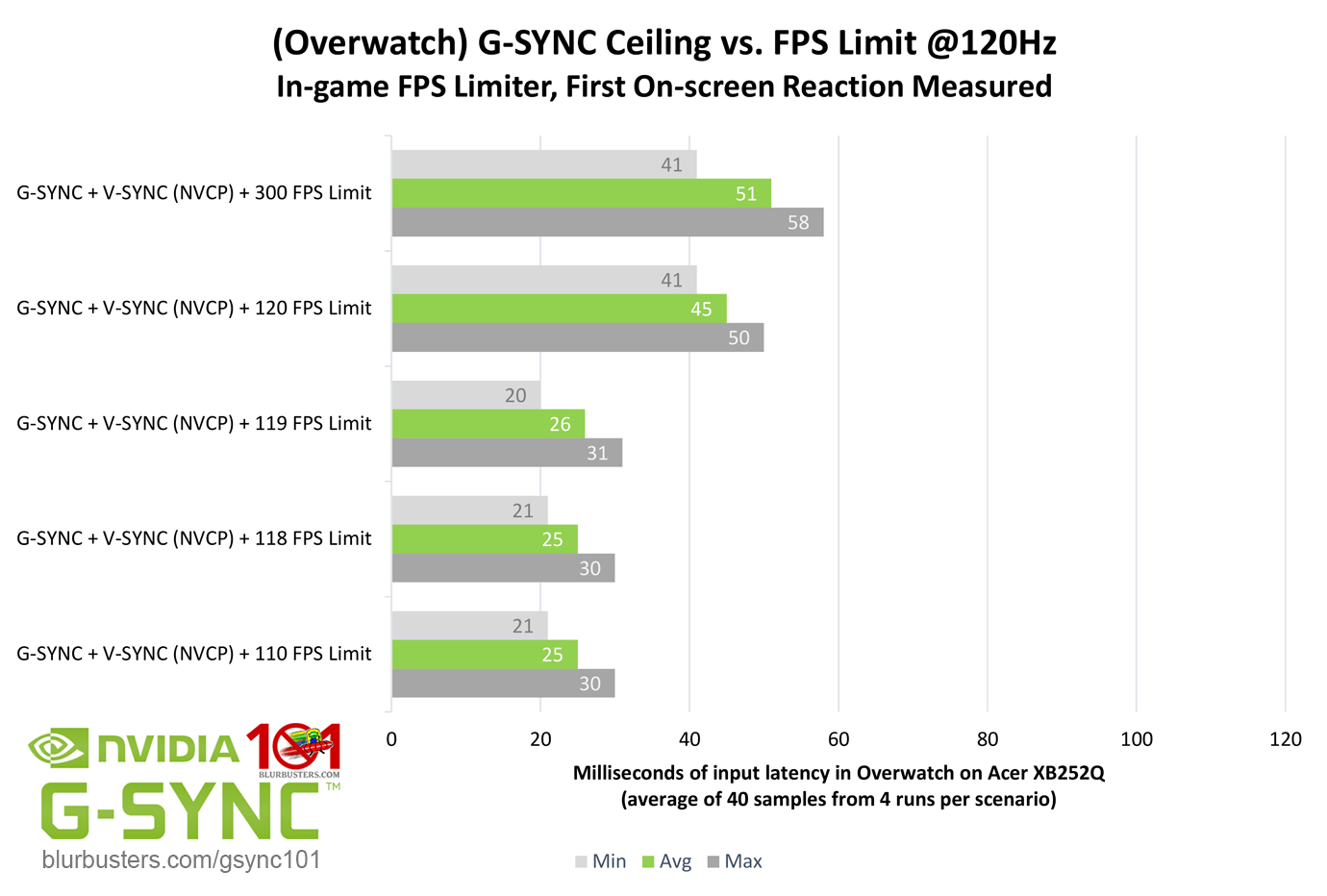
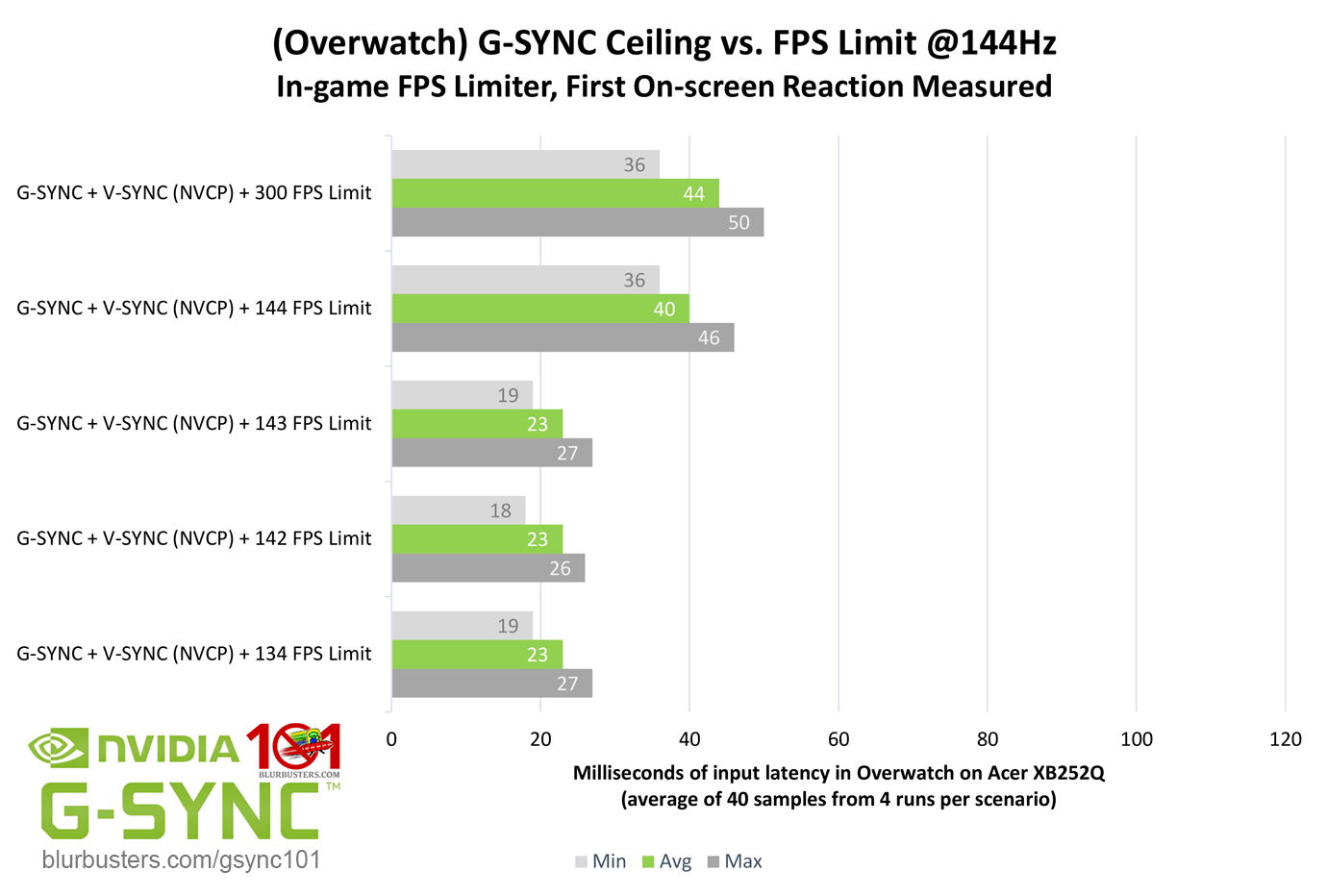
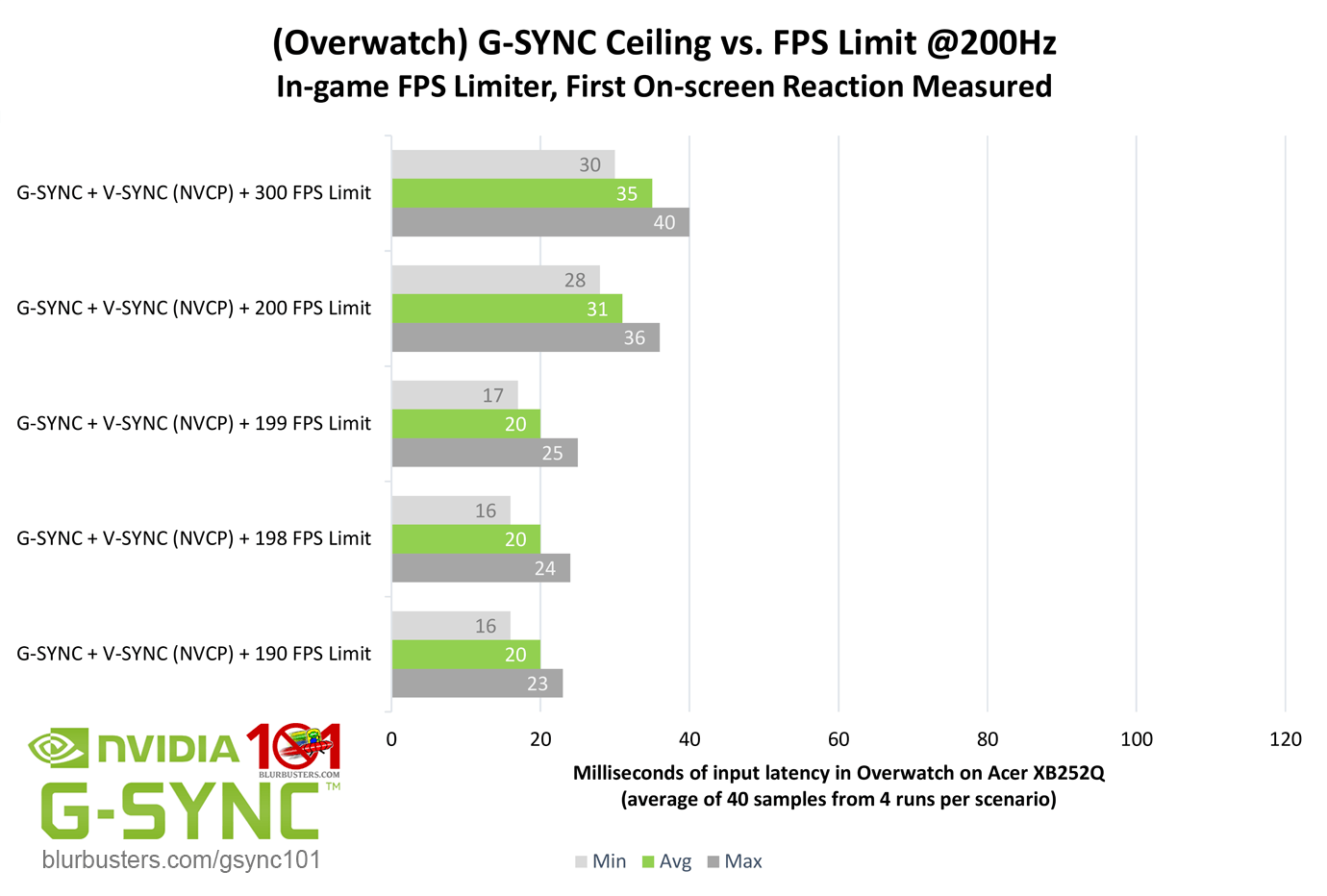
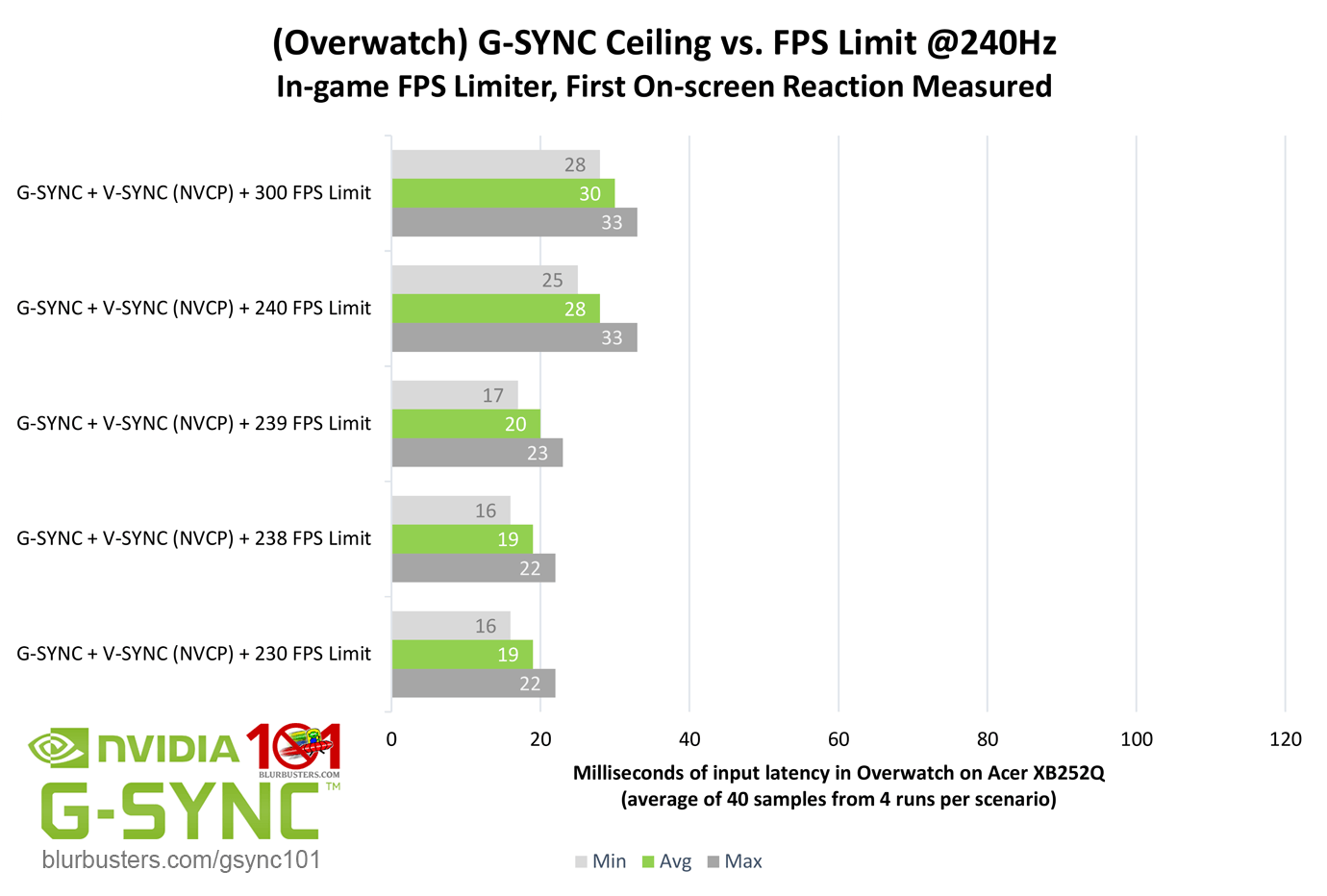
My own testing in my Blur Busters Forum thread found that just 2 FPS below the refresh rate was enough to avoid the G-SYNC ceiling. However, now armed with improved testing methods and equipment, is this still the case, and does the required FPS limit change depending on the refresh rate?
Blur Buster's G-SYNC 101: Input Latency & Optimal Settings

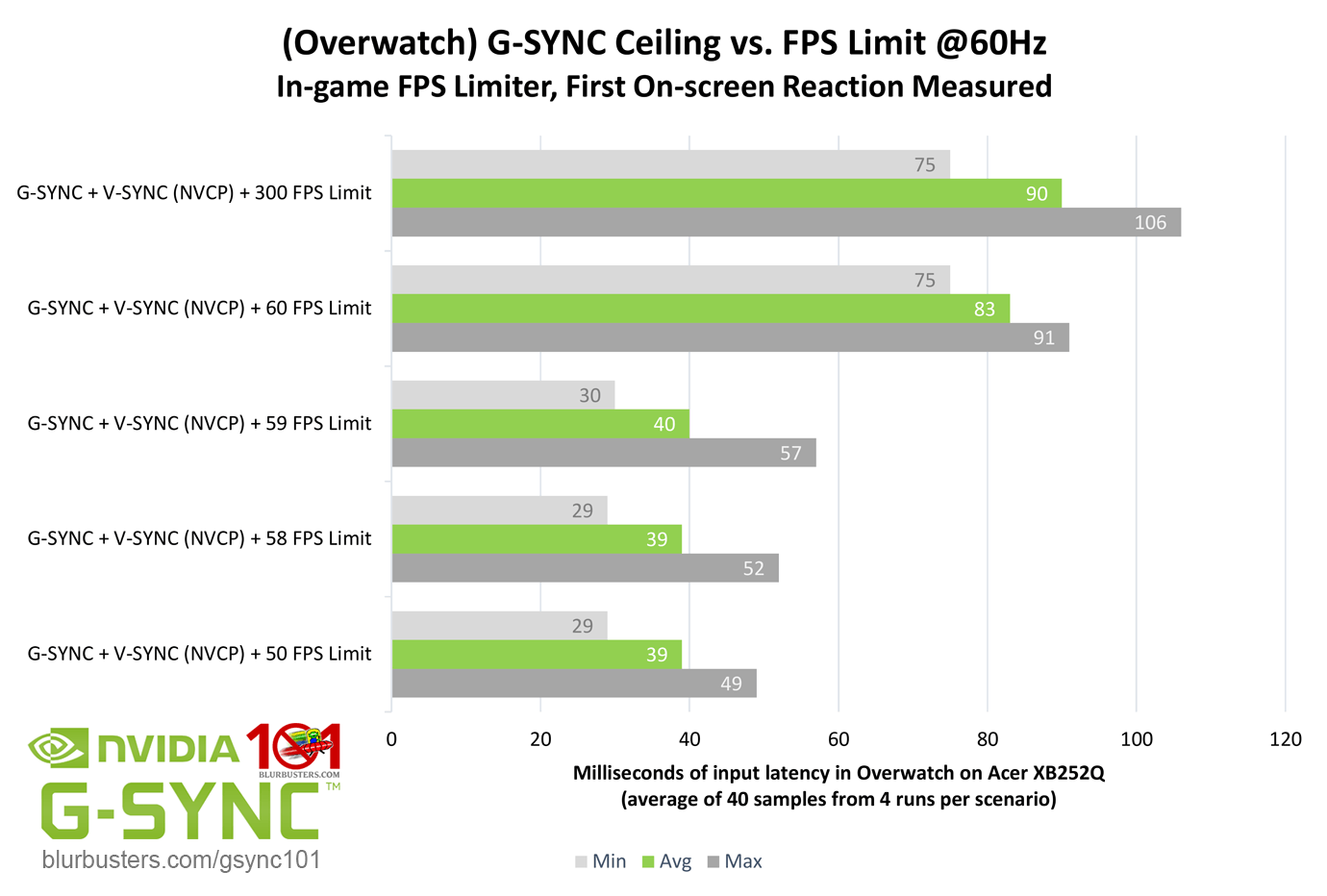
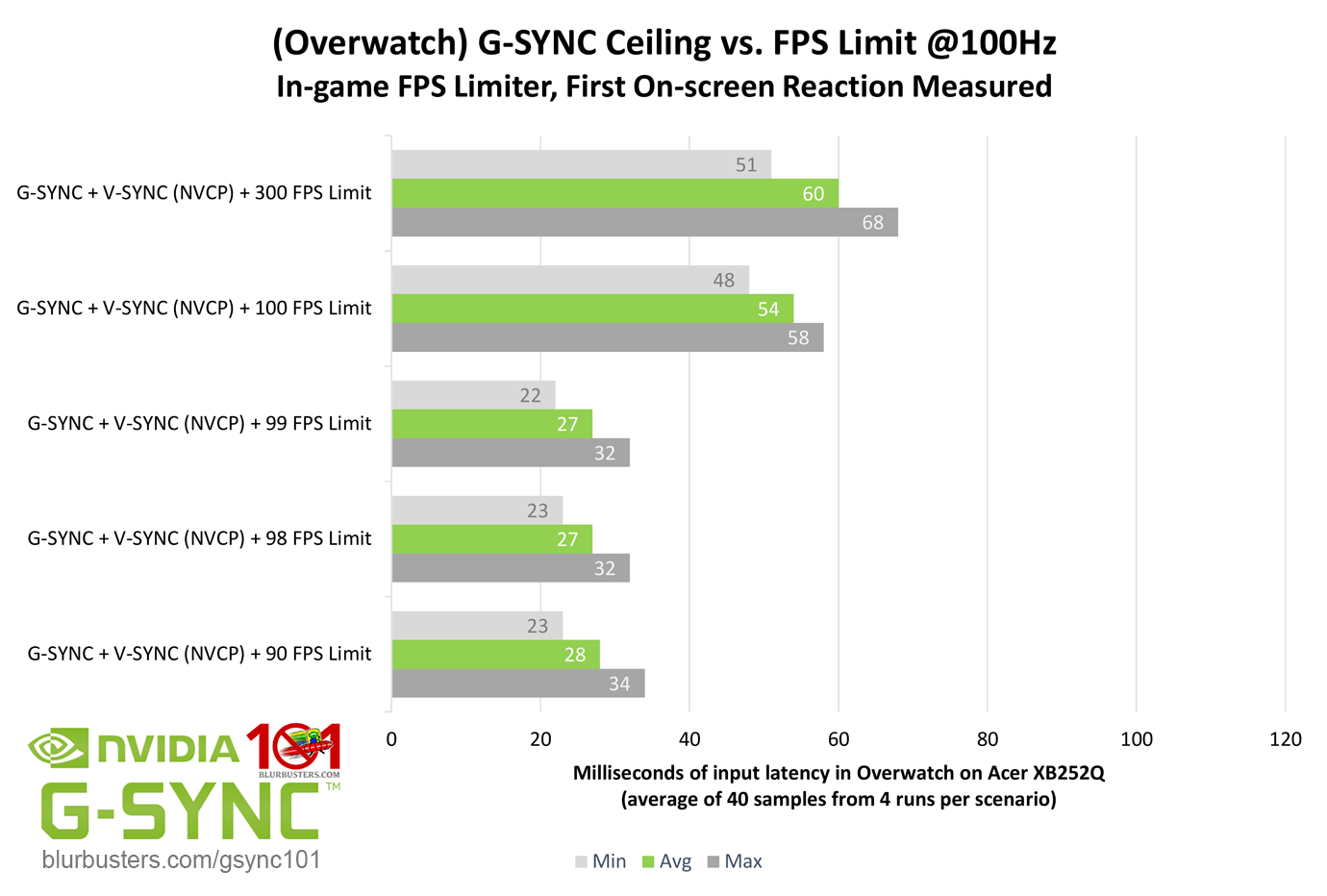
As the results show, just 2 FPS below the refresh rate is indeed still enough to avoid the G-SYNC ceiling and prevent V-SYNC-level input lag, and this number does not change, regardless of the maximum refresh rate in use.

To leave no stone unturned, an “at” FPS, -1 FPS, -2 FPS, and finally -10 FPS limit was tested to prove that even far below -2 FPS, no real improvements can be had. In fact, limiting the FPS lower than needed can actually slightly increase input lag, especially at lower refresh rates, since frametimes quickly become higher, and thus frame delivery becomes slower due to the decrease in sustained framerates.

As for the “perfect” number, going by the results, and taking into consideration variances in accuracy from FPS limiter to FPS limiter, along with differences in performance from system to system, a -3 FPS limit is the safest bet, and is my new recommendation. A lower FPS limit, at least for the purpose of avoiding the G-SYNC ceiling, will simply rob frames.



3890 Comments For “G-SYNC 101”

This site uses Akismet to reduce spam. Learn how your comment data is processed.

Sort by:   newest | oldest | most liked
user2422
Member
user2422

In an earlier comment you mentioned that ULLM is somewhat inefficient compared to Reflex or a manual limit, if i were to use Gsync + Vsync + ULLM, would that starving of the max queued frames and the potential stutters that come with it even apply considering that ULLM is auto limiting the fps in this configuration? Like does it limit low enough to prevent this from even happening?

Also when using Gsync + Vsync and then only enabling ULLM via Inspector without setting max pre-rendered frames to 1 (which ULLM would’ve otherwise done if it was applied via NVCP or NVApp), would this then be just an auto limiter without the other effects of ULLM? I’ve tried this configuration in-game and the auto limit still applies but I’m unsure whether or not ULLM will have any other impact in this configuration.

eonjr
Member
eonjr

Hi, thank you for the guides! But I have something to ask. My laptop has a 300hz refresh rate that is also GSync compatible. I have it capped at 285 using a formula that I saw on a Reddit post a while ago (via NVIDIA APP > Max Frame Rate).

I unfortunately get this gray flickering during gaming but I can get used to it. However, what I cannot stand is, when I tried using editing software (like Adobe Premiere Pro), the flickering was also present despite me having turned off GSync specifically for that app (via NVIDIA App). Is there something I am doing wrong? What can be done to completely eliminate flickering for non-game apps?

HagenKL
Member
HagenKL

Hey, the article talks about GSync with the Module. Is the Behaviour the same for GSync Compatible (aka Freesync monitors?)

Apache3m
Member
Apache3m

Naturally, with MFG enabled, Reflex limits my FPS from 240 to 224; however, if I disable V-Sync in the Nvidia Control Panel, I hit 240 FPS with MFG on.

Mark Rejhon
Admin

It bears worth noting that 224 vs 240 is extremely small (1/224)-(1/240) = 0.3ms frametime difference. It’s more about geometrics (e.g. 200fps vs 400fps vs 1000fps) that is much more noticeable. It’s possible to have a much smoother 224fps and a much worse 240fps that looks rougher-motion than 224fps. It’s all in the microstutter/tearing mechanics, and how you prioritize visual fidelity. A great test is to strafe in CP2077 and watch for microstuttering/tearing. This is one of the ways to compare framepacing quality of VRR and capping mechanisms.

Those using VRR and framegen are often looking to improve smoothness without prioritizing on esports latency, so this is often prioritized for solo games like Witcher and CP2077. Turning off Reflex and still using VSYNC ON is another way to get 240fps with smoothness, but that increases latency dramatically on top of the latency that framegen gives, so it can veer into distraction territory.

Reflex + framegen + VRR is a good “acceptable-for-solo latency” compromise, and lagfeel can actually still feel similar to the original pre-framegen framerate (with latency countermeasured turned off).

Apache3m
Member
Apache3m

Hi – I have a setup with a 9800X3D and an RTX 5080, along with an MSI 321URX QD-OLED monitor.
Could you tell me what I should do when gaming with NVIDIA’s Frame Gen (MFG) enabled? Should I stick with the G-Sync + V-Sync + Reflex settings, or do you recommend something else?

wpDiscuz