
G-SYNC 101: G-SYNC vs. V-SYNC w/FPS Limit


So Close, Yet So Far Apart

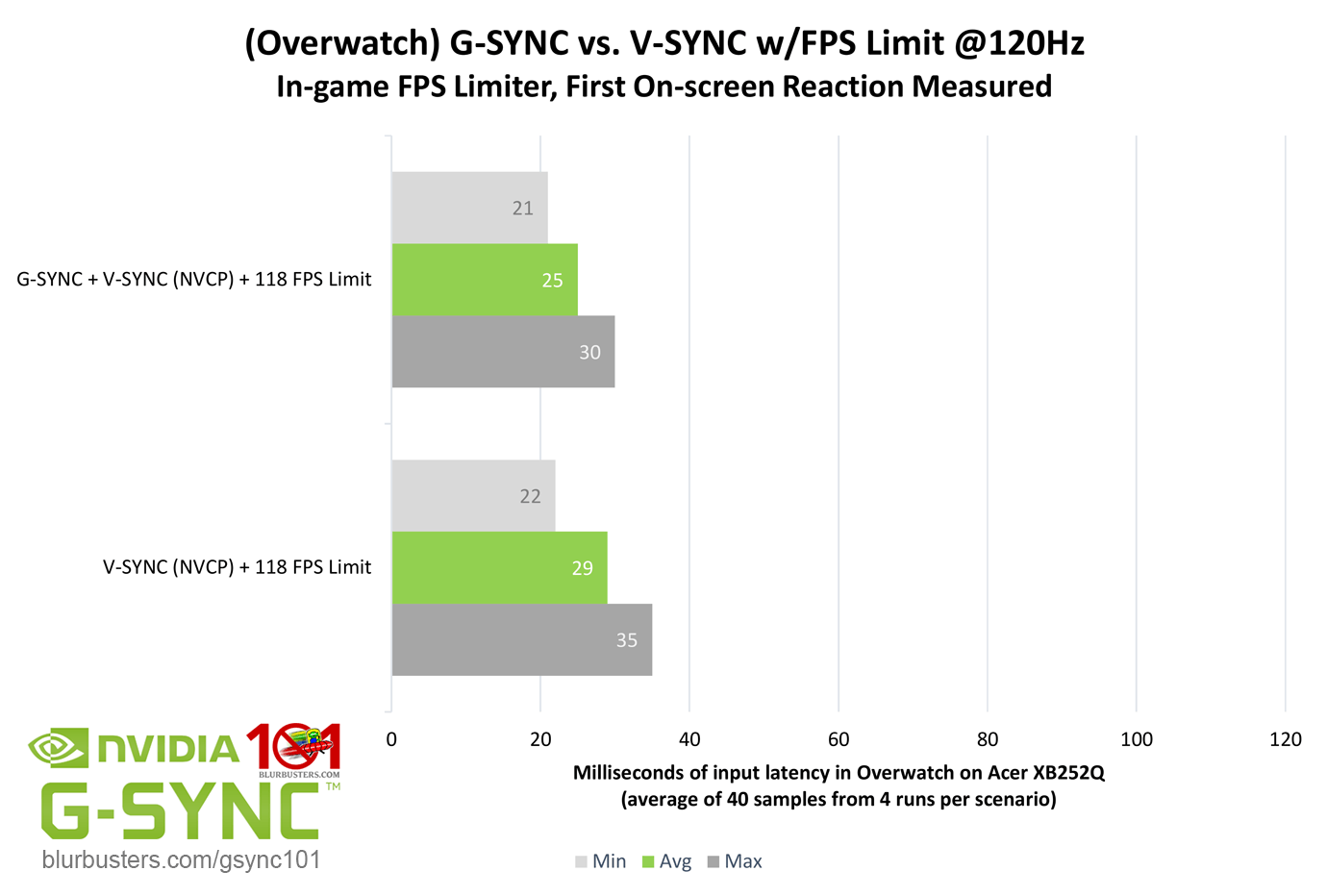
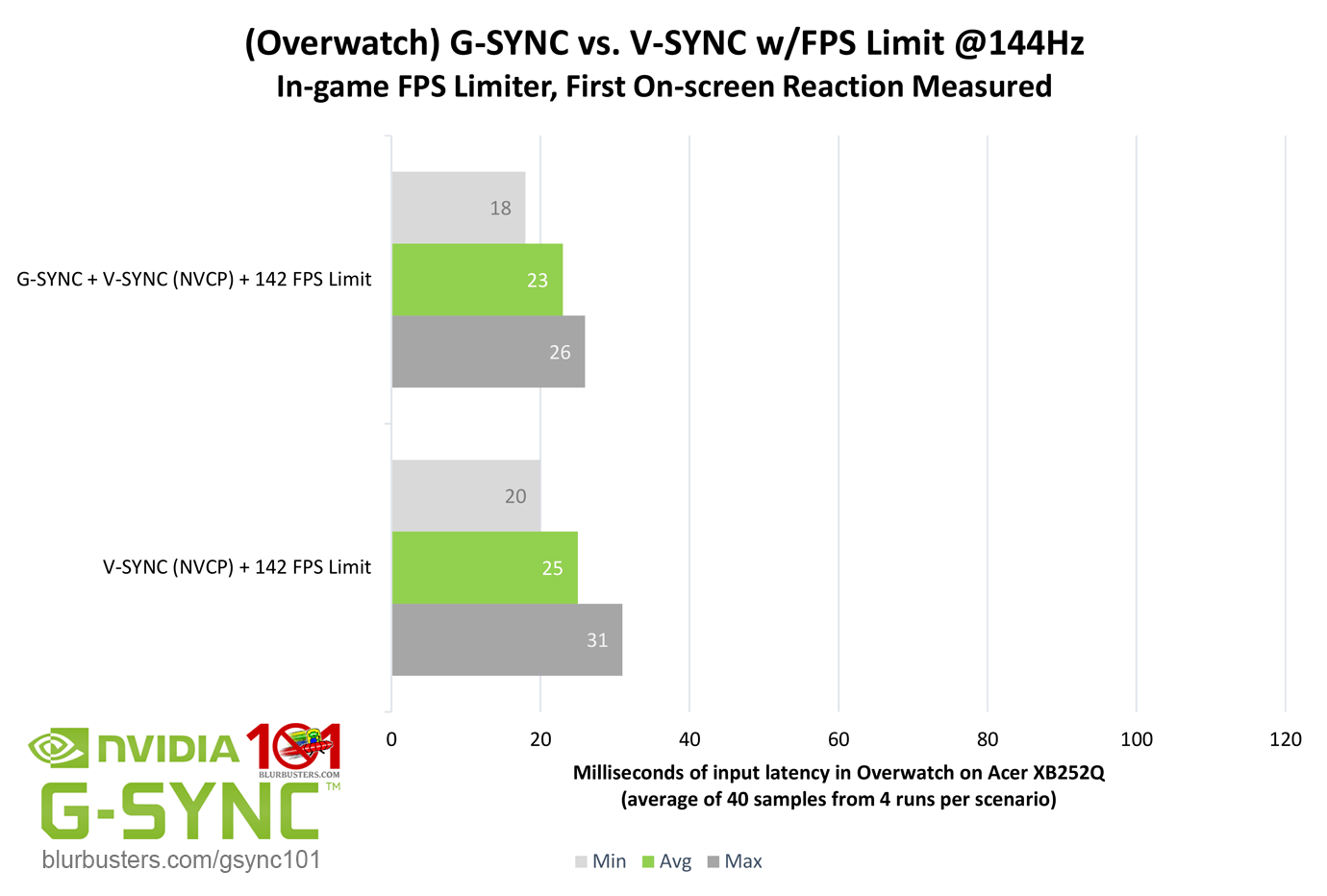
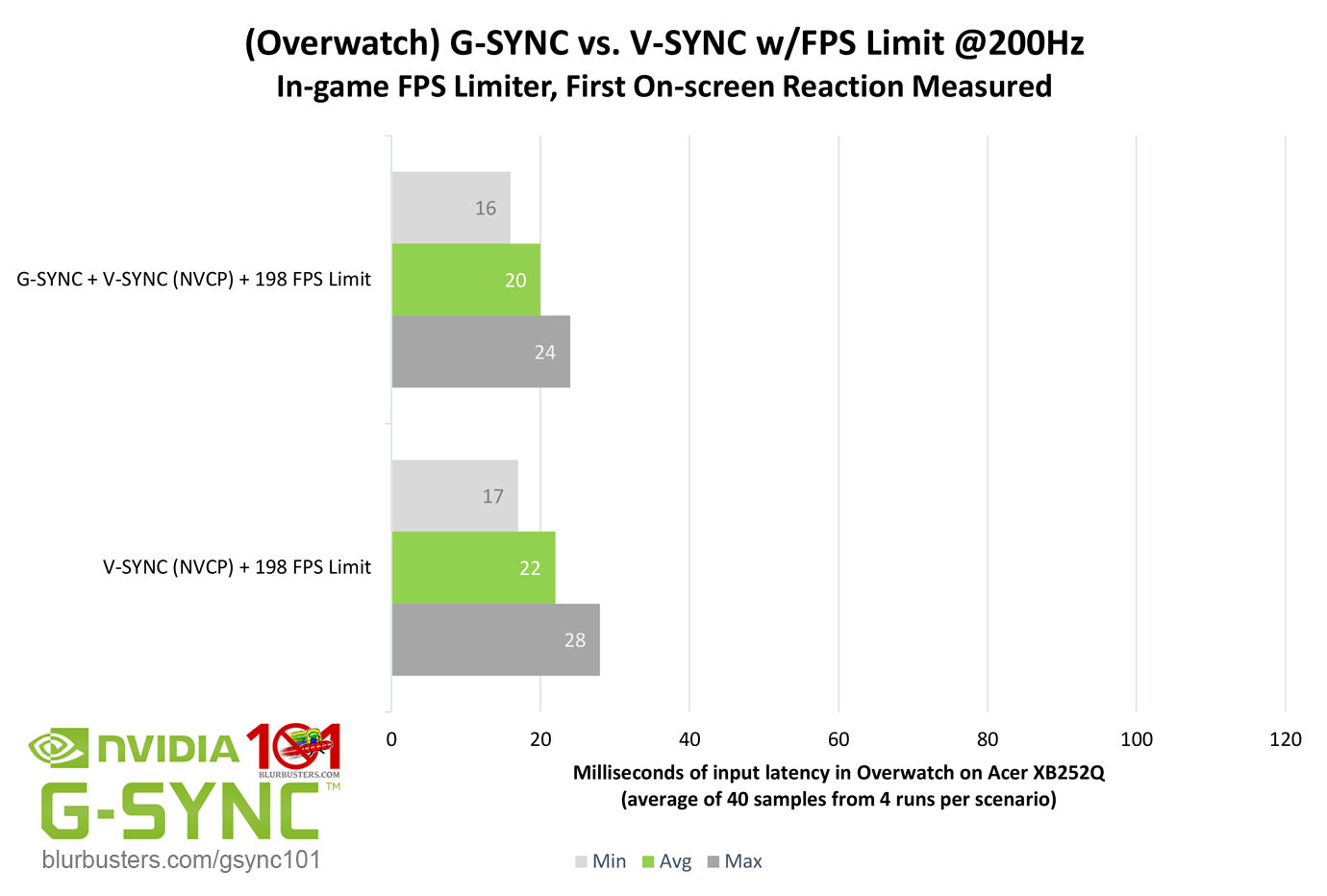
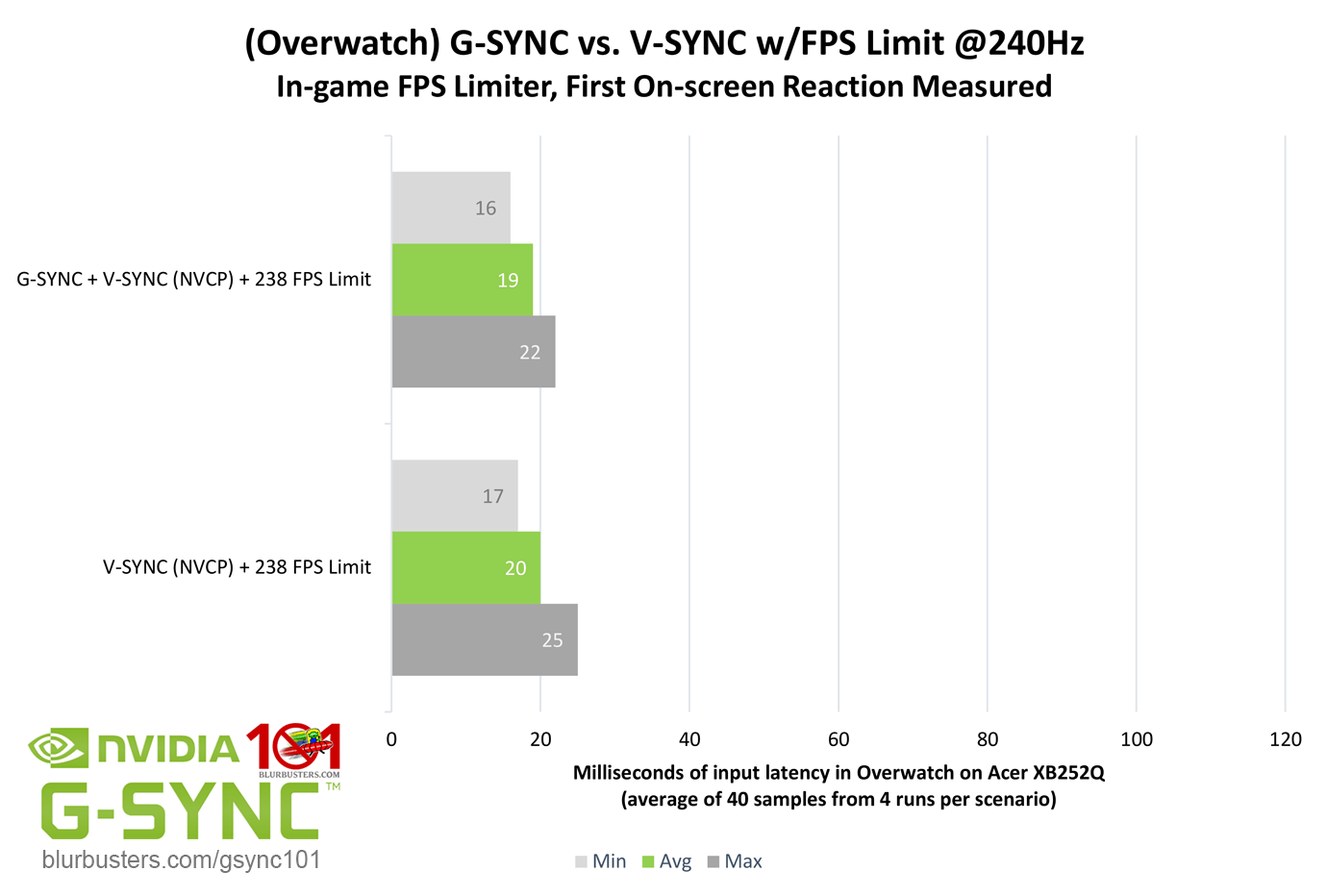
On the subject of single, tear-free frame delivery, how does standalone double buffer V-SYNC compare to G-SYNC with the same framerate limit?
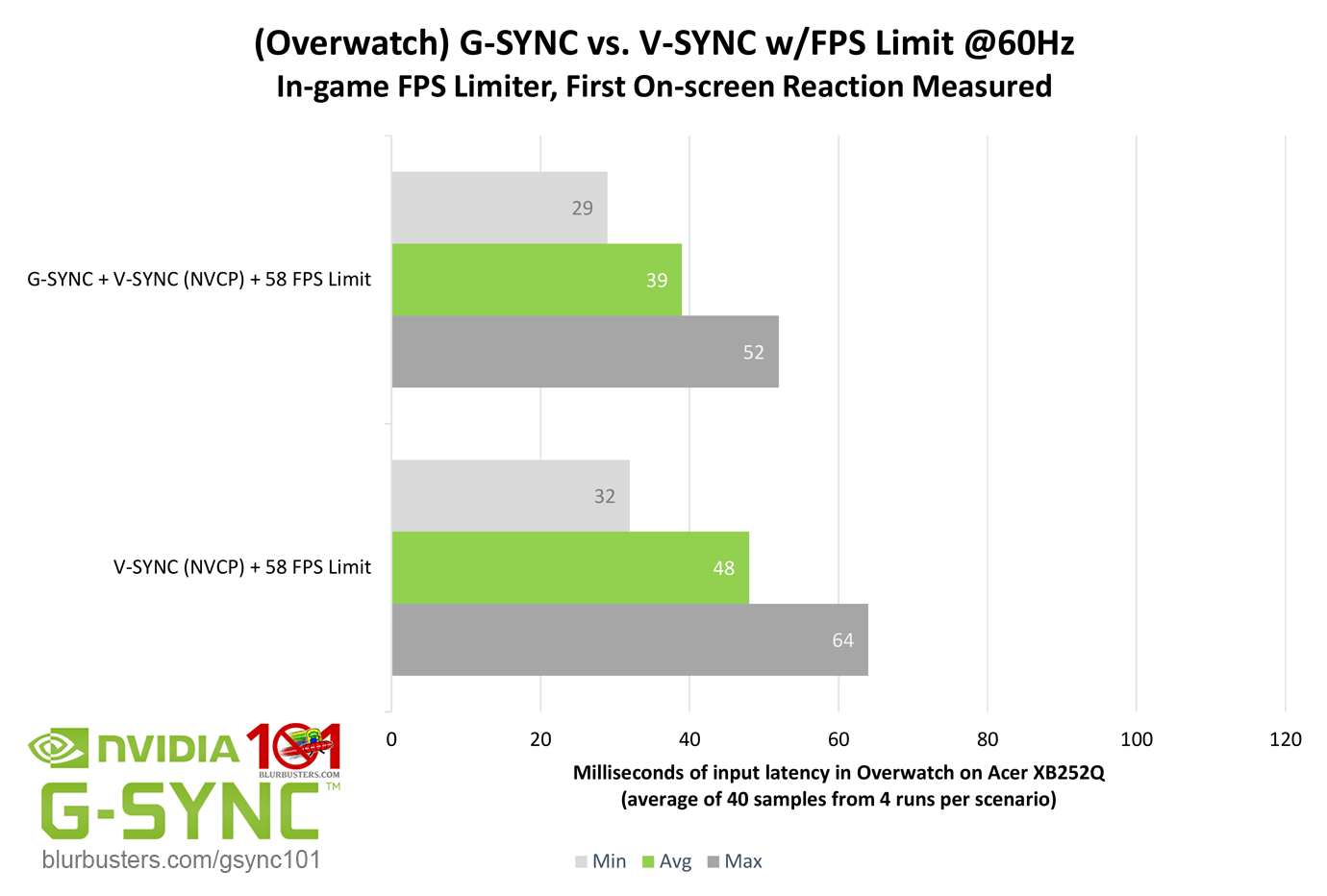
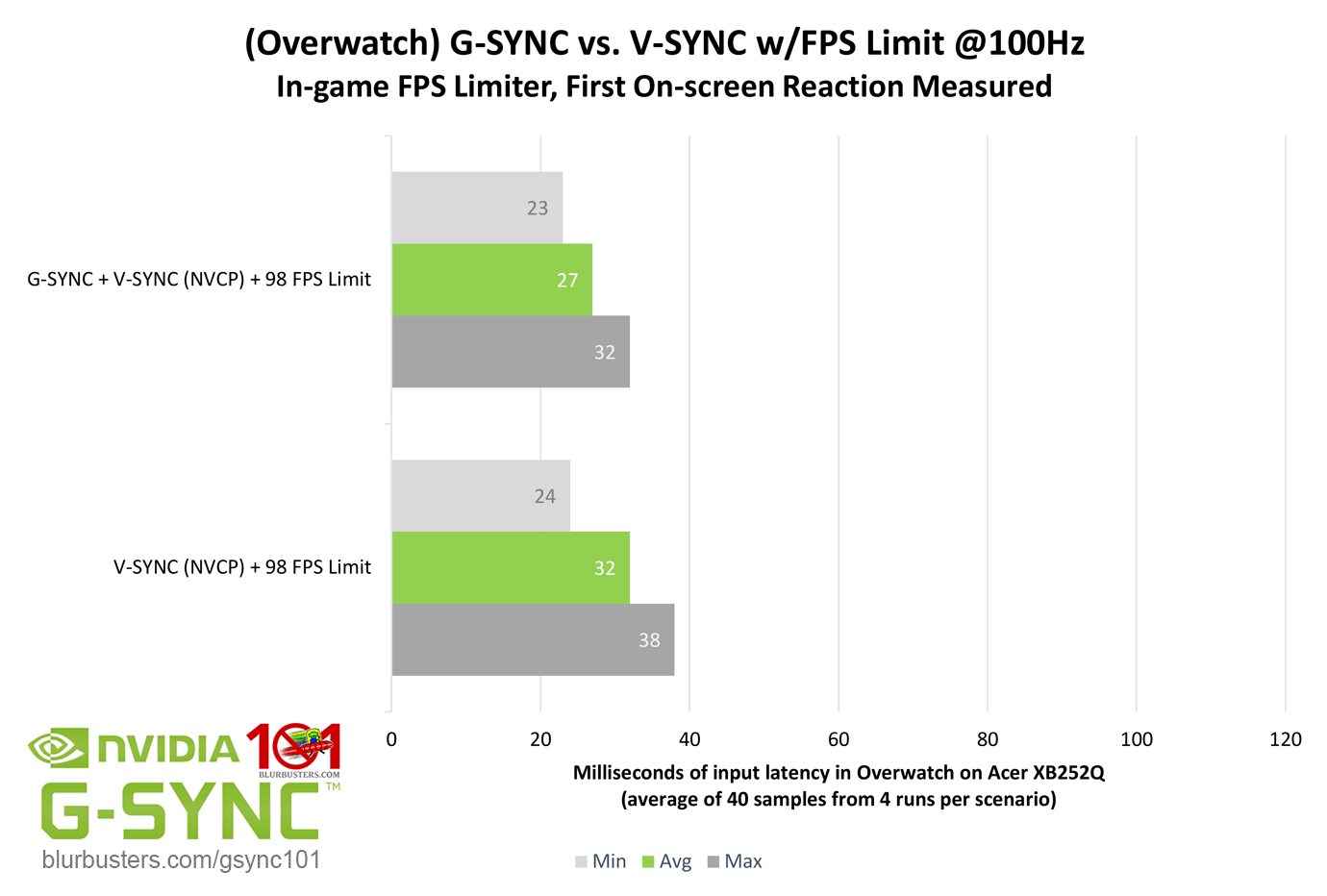
Blur Buster's G-SYNC 101: Input Latency & Optimal Settings

As the results show, but for 60Hz (remember, a “frame” of delay is relative to the refresh rate), the numbers are relatively close. So what’s so great about G-SYNC’s ability to adjust the refresh rate to the framerate, if the majority of added input latency with V-SYNC can be eliminated with a simple FPS limit? Well, as the title of this section hints, it’s not quite that cut and dry…

While it’s common knowledge that limiting the FPS below the refresh rate with V-SYNC prevents the over-queuing of frames, and thus majority of added input latency, it isn’t without its downsides.

Unlike G-SYNC, V-SYNC must attempt to time frame delivery to the fixed refresh rate of the display. If it misses a single one of these delivery windows below the maximum refresh rate, the current frame must repeat once until the next frame can be displayed, locking the framerate to half the refresh rate, causing stutter. If the framerate exceeds the maximum refresh rate, the display can’t keep up with frame output, as rendered frames over-queue in both buffers, and appearance of frames is delayed yet again, which is why an FPS limit is needed to prevent this in the first place.

When an FPS limit is set with V-SYNC, the times it can deliver frames per second is shrunk. If, for instance, the FPS limiter is set to 59 fps on a 60Hz display, instead of 60 frames being delivered per second, only 59 will be delivered, which means roughly every second a frame will repeat.

As the numbers show, while G-SYNC and V-SYNC averages are close over a period of frames, evident by the maximums, it eventually adds up, causing 1/2 to 1 frame of accumulative delay, as well as recurring stutter due to repeated frames. This is why it is recommended to set a V-SYNC FPS limit mere decimals below the refresh rate via external programs such as RTSS.

That said, an FPS limit is superior to no FPS limit with double buffer V-SYNC, so long as the framerate can be sustained above the refresh rate at all times. However, G-SYNC’s ability to adjust the refresh rate to the framerate eliminates this issue entirely, and, yet again, beats V-SYNC hands down.



3761 Comments For “G-SYNC 101”

This site uses Akismet to reduce spam. Learn how your comment data is processed.

Sort by:   newest | oldest | most liked
fishman099
Member
fishman099

Hey all, just wanted to post to say thanks for the guide. Implemented as described a long time ago (took several reads lol) but still works superbly well today.

Wanted to also post for those newly discovering this guide.

My set up:

LG Oled B3
Windows 11 (but worked on 10)
RTX4070ti super
Ryzen 5700x3d
32gb ram
2xNvMe

I have my control panel set to:

Gsync enabled for both full screen and borderless
Desktop/game res: 1440p/120hz
LLM: on
Max frame rate: 114fps
Gsync: on
Vsync: on

In game:

Vsync: off

From the getgo, I know gsync engages as the LG (when in game mode) shows the gsync symbol.

So I’m a nerd, been gaming for years but was a total noob when it came to VRR/Gsync. I either never had the kit that allowed me to even experiment or I read basic guides online that lacked context or understanding of how it worked.

However as I’ve upgraded my rig THIS guide has been a godsend.

I think it’s worth saying that this ‘process’ is NOT a magic bullet as jorimt and the mods state several times. It doesn’t make frames or increases FPS BUT what it does do, for me, is allow my games to run at a FPS below my refresh rate that minimises stutter and maximises smoothness.

Also worth bearing in mind is the point that is made repeatedly, that you may, at some points, have to compromise on either resolution OR eye candy. My 4070ti super is potent but I run EVERYTHING at 1440p. Some would say compromise, but I disagree. A relatively consistent 1440p@120hz with plenty of eye candy is much more preferable than a constant 4k@60hz but lowered settings for me (YMMV).

Similarly, in my experience, to gain the most advantage from VRR/gsync frame rates need to be as much past 60 as possible – hence the 1440p/120hz decision.

My test games were always Sensuas Saga (Hellblade2) and Alan Wake 2 primarily because they played v.nicely with Gsync and are v.graphically challenging.

I use both DLSS and/or Frame Gen if required when gaming and tbh it is a flawless experience when coupled with VRR/Gsync. Id hit 90- 114fps on AW2 but because of Gsync it would always run lovely and smooth. Also I’m quite sensitive to input latency but having followed this guide I can honestly say I’ve not noticed any significant increase!

Anyway apologies for the wall of text, thought it might help peeps who are new to this to see that even a Gsync novice can make this work as intended. Just temper those expectations and follow the guide 👍

Ps thanks to jorimt for effort in putting this guide together – awesome!!

ToKc1n
Member
ToKc1n

Good evening, I’ve been writing comments for ages, but I’m still struggling to figure it out. Perhaps it’s just my personal preference. I have a 180Hz monitor, 5070 RTX, and 13600K. How can I properly configure the G Sync+ Vidia panel with a frame rate cap?
The problem is that games don’t support 180Hz. Take RDR 2 or Black Ops 6, for example, and they jump from 123 to 156.
I’m not entirely sure how to track trends or if it makes sense. When I turn on low latency to ultra or on, I get micro-freezing and a sluggish feeling. If I just enable G Sync in the panel and nothing else, then in GTA 5, I get 0.1-0.2 ms latency and FPS spikes from 300 to 500, but if I set the FPS cap to 177 or 172, I get micro-stuttering.

fishman099
Member
fishman099

I’m curious what res/graphics settings your running at?

Haven’t played either game for awhile but if the frame rate is jumping between 123 to 156 and your monitors refresh is 180hz then I assume your know where near hitting that.

As a novice (someone who’s used this guide successfully) I’ve just posted my settings but I run:

I have my control panel set to:

Gsync enabled for both full screen and borderless
Desktop/game res: 1440p/120hz
LLM: on
Max frame rate: 114fps
Gsync: on
Vsync: on

In game:

Vsync: off

If I’m able I also set NO in game frame limiter. In other words as my max refresh is 120hz I either select that is available or unlimited and let Gsync/NVCP do the rest.

The control panel settings, as far as I am concerned, are set and forget. When I do a fresh windows install I set the NVCP to those above and then every game I play turn off vsync immediately and either pick my monitors native refresh or unlimited.

Any game you play will allow you to select your native monitor refresh rate (if full screen). However I usually run window borderless which I understand to default to your desktop resolution/refresh anyway.

Have a play with my settings, see if they work as they are 1:1 with this guide. As I said in my post, this guide is amazing and does work. The hard part, for me, was trying to understand what each ‘setting’ did. Remember you can’t break anything and at worst have to reset your NVCP settings default 👍

petran79
Member
petran79

I have an Asus Rog p348q monitor at 100 hz. Set frame rate cap at 97. I notice an issue with the updated Vulkan renderer in some applications. In Snes9x emulator for example, the games run at 48 fps instead of 60. I have to set Vulkan/OpenGL present method to Native.
While on Retroarch, on top of that step, I also have to enable “Application controlled refresh rate” option, same for Dolphin emulator where I have to disable max frame rate.

Recently I noticed a 2d game where I had to set nvidia panel frame rate to 120 in order for game to run at 60 fps instead of 48.

Razvan Badaluta
Member
Razvan Badaluta

Hello!

Without a fps cap i am getting around 800 fps in fortnite creative but when i turn v sync on( even in the Nvidia apps) i am getting a limit at 438 or sometimes 425 ( i have the xg27aqdpg 500 Hz monitor) i want a fast frametime and fps as close as I can get to the monitor refresh rate but i do not want tearing. I tried playing around with Nvidia low latency but i did not notice any difference. All this happened with g sync on. I did something wrong? any tips?

Noidy
Member
Noidy

Hello!

Im getting lost in the sauce… I Have an AMD gpu with a freesync premium pro display (msi maq 1440p oled 240hz). I play mainly overwatch but I like to play with a tear free screen. So with -3 fps limit, Freesync + v-sync i only add 1 ms of delay compared to freesync/vsync off and fps unlimited?

wpDiscuz