
 Menu
Menu
Optimal G-SYNC Settings*
*Settings tested with a single G-SYNC display (w/hardware module) on a single desktop GPU system; specific DSR, SLI, and multi-monitor behaviors, as well as G-SYNC laptop display and “G-SYNC Compatible” display implementation, may vary.
Nvidia Control Panel Settings:
- Set up G-SYNC > Enable G-SYNC, G-SYNC Compatible > Enable for full screen mode
(see Closing FAQ #5 for “Enable for windowed and full screen mode” recommendations) - Manage 3D settings > Vertical sync > On
(see Closing FAQ #2 for “why”)
In-game Settings:
- For DX11 or older, use “Fullscreen” or “Exclusive Fullscreen” mode (some games do not offer this option, or label borderless windowed as fullscreen). For DX12, use “Borderless” or “Borderless Windowed” mode, which is equivalent to legacy “Fullscreen” mode.
- Disable all available “Vertical Sync,” “V-SYNC,” “Double Buffer,” and “Triple Buffer” options.
- If an in-game or config file FPS limiter is available, and framerate exceeds refresh rate:
Set (a minimum of) 3 FPS limit below display’s maximum refresh rate (57 FPS @60Hz, 97 FPS @100Hz, 117 FPS @120Hz, 141 FPS @144Hz, etc).
RTSS Settings (alternative to in-game limiter):
- If an in-game or config file FPS limiter is not available and framerate exceeds refresh rate:
Set (a minimum of) 3 FPS limit below display’s maximum refresh rate (see G-SYNC 101: External FPS Limiters HOWTO).
OR
Nvidia “Max Frame Rate” Settings* (alternative to in-game limiter):
*Introduced in Nvidia driver version 441.87
- If an in-game or config file FPS limiter is not available and framerate exceeds refresh rate:
Set “Max Frame Rate” to “On,” and adjust slider to (a minimum of) 3 FPS limit below display’s maximum refresh rate.
Reflex* Settings (optional):
*This setting is considered Low Latency Mode’s replacement, and will override it, regardless of what LLM is set to in the NVCP.
- If framerate does not always reach or exceed refresh rate, and Reflex is available:
Set Reflex to “On” or “On + Boost” (“Boost” ensures the GPU doesn’t drop below its base boost clocks, similar to NVCP “Prefer maximum performance”). When combined with G-SYNC + NVCP V-SYNC, this engine-level limiter will 1) automatically limit the framerate to ~59 FPS @60Hz, ~97 FPS @100Hz, ~116 FPS @120Hz, ~138 FPS @144Hz, ~224 FPS @240Hz (etc) whenever the framerate can be sustained above the refresh rate, and 2) dynamically monitor and limit the framerate whenever it can’t be sustained above the refresh rate to prevent the extra pre-rendered frames that would be generated in an otherwise GPU-bound scenario.
Low Latency Mode* Settings (optional):
*This setting is not currently supported in Vulkan (DX12 support was added in driver version 551.23)
- If an FPS limiter (such as in-game, config file, RTSS, and/or Nvidia “Max Frame Rate”) is not desired or available, Reflex is not available, and framerate exceeds refresh rate:
Set “Low Latency Mode” to “Ultra” in the Nvidia Control Panel. When combined with G-SYNC + NVCP V-SYNC, this setting will automatically limit the framerate (in supported games) to ~59 FPS @60Hz, ~97 FPS @100Hz, ~116 FPS @120Hz, ~138 FPS @144Hz, ~224 FPS @240Hz, etc. - If an FPS limiter is already in use (such as in-game, config file, RTSS, and/or Nvidia “Max Frame Rate”), Reflex is not available, and framerate does not always reach or exceed refresh rate:
Set “Low Latency Mode” to “On.” Unlike “Ultra,” this will not automatically limit the framerate, but like “Ultra,” “On” (in supported games that do not already have an internal pre-rendered frames queue of “1”) will reduce the pre-rendered frames generated in GPU-bound situations where the framerate falls below the set FPS limit.
Windows “Power Options” Settings (optional):
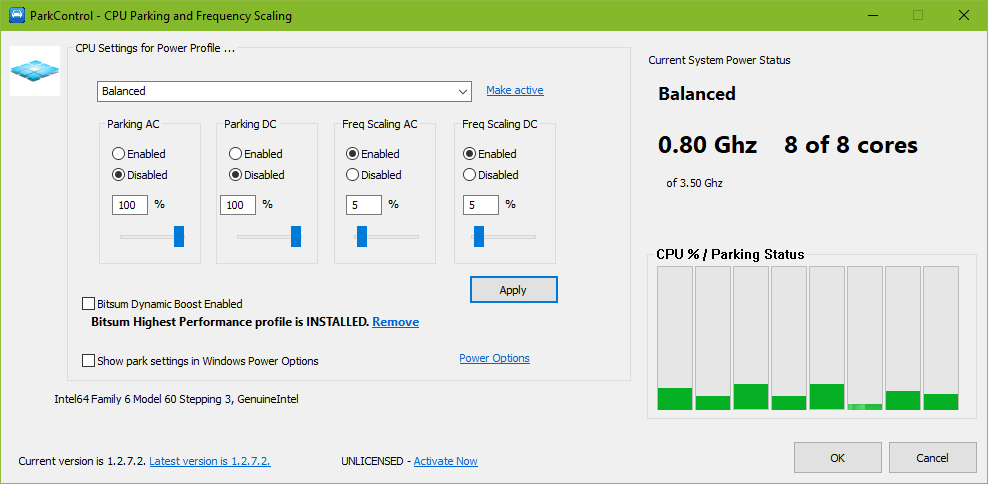
Windows-managed core parking can put CPU cores to sleep too often, which may increase frametime variances and spikes. For a quick fix, use the “High performance” power plan, which disables OS-managed core parking and CPU frequency scaling. If a “Balanced” power plan is needed for a system implementing adaptive core frequency and voltage settings, then a free program called ParkControl by Bitsum can be used to disable core parking, while leaving all other power saving and scaling settings intact.
Mouse Settings:
If available, set the mouse’s polling rate to at least 1000Hz, which is the setting recommended by Nvidia for high refresh rate G-SYNC, and will decrease the mouse-induced input lag and microstutter experienced with the lower 500Hz and 125Hz settings at higher refresh rates.
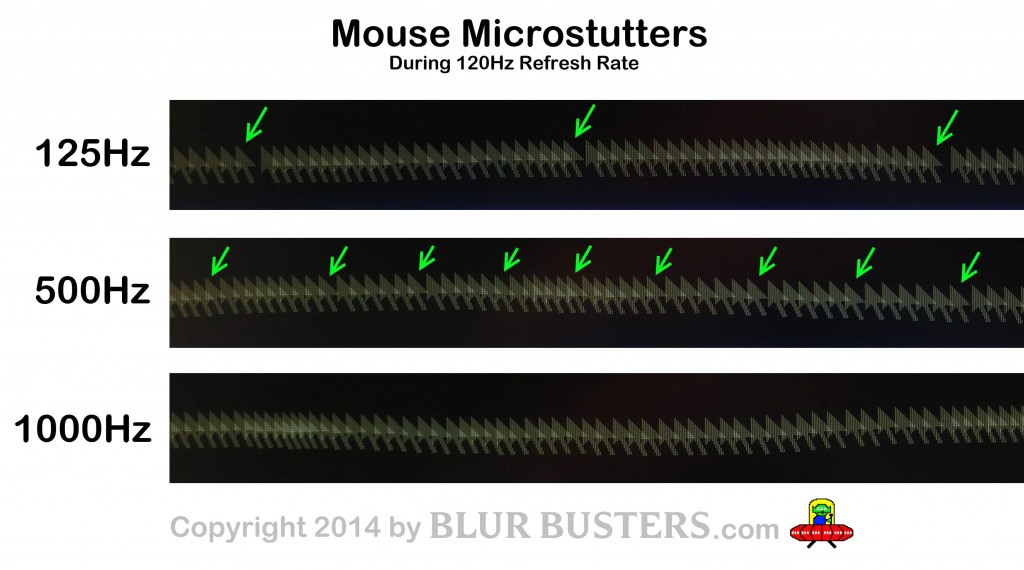
Refer to The Blur Busters Mouse Guide for complete information.
Nvidia Control Panel V-SYNC vs. In-game V-SYNC
While NVCP V-SYNC has no input lag reduction over in-game V-SYNC, and when used with G-SYNC + FPS limit, it will never engage, some in-game V-SYNC solutions may introduce their own frame buffer or frame pacing behaviors, enable triple buffer V-SYNC automatically (not optimal for the native double buffer of G-SYNC), or simply not function at all, and, thus, NVCP V-SYNC is the safest bet.
There are rare occasions, however, where V-SYNC will only function with the in-game option enabled, so if tearing or other anomalous behavior is observed with NVCP V-SYNC (or visa-versa), each solution should be tried until said behavior is resolved.
Maximum Pre-rendered Frames*: Depends
*As of Nvidia driver version 436.02, “Maximum pre-rendered frames” is now labeled “Low Latency Mode,” with “On” being equivalent to MPRF at “1.”
A somewhat contentious setting with very elusive consistent documentable effects, Nvidia Control Panel’s “Maximum pre-rendered frames” dictates how many frames the CPU can prepare before they are sent to the GPU. At best, setting it to the lowest available value of “1” can reduce input lag by 1 frame (and only in certain scenarios), at worst, depending on the power and configuration of the system, the CPU may not be able to keep up, and more frametime spikes will occur.
The effects of this setting are entirely dependent on the given system and game, and many games already have an equivalent internal value of “1” at default. As such, any input latency tests I could have attempted would have only applied to my system, and only to the test game, which is why I ultimately decided to forgo them. All that I can recommend is to try a value of “1” per game, and if the performance doesn’t appear to be impacted and frametime spikes do not increase in frequency, then either, one, the game already has an internal value of “1,” or, two, the setting has done its job and input lag has decreased; user experimentation is required.
Conclusion
Much like strobing methods such as LightBoost & ULMB permit “1000Hz-like” motion clarity at attainable framerates in the here and now, G-SYNC provides input response that rivals high framerate V-SYNC OFF, with no tearing, and at any framerate within its range.
As for its shortcomings, G-SYNC is only as effective as the system it runs on. If the road is the system, G-SYNC is the suspension; the bumpier the road, the less it can compensate. But if set up properly, and run on a capable system, G-SYNC is the best, most flexible syncing solution available on Nvidia hardware, with no peer (V-SYNC OFF among them) in the sheer consistency of its frame delivery.
Feel free to leave a comment below, resume the discussion in the Blur Busters Forums, or continue to the Closing FAQ for further clarifications.
